FiveM Custom HUD & NUI Tutorial: Build From Scratch (2026)
Learn how to build a fully custom FiveM HUD using NUI from scratch. Complete code examples for HTML, CSS, Lua, and JavaScript — including speedometer, hunger/thirst, framework integration, and performance optimization.
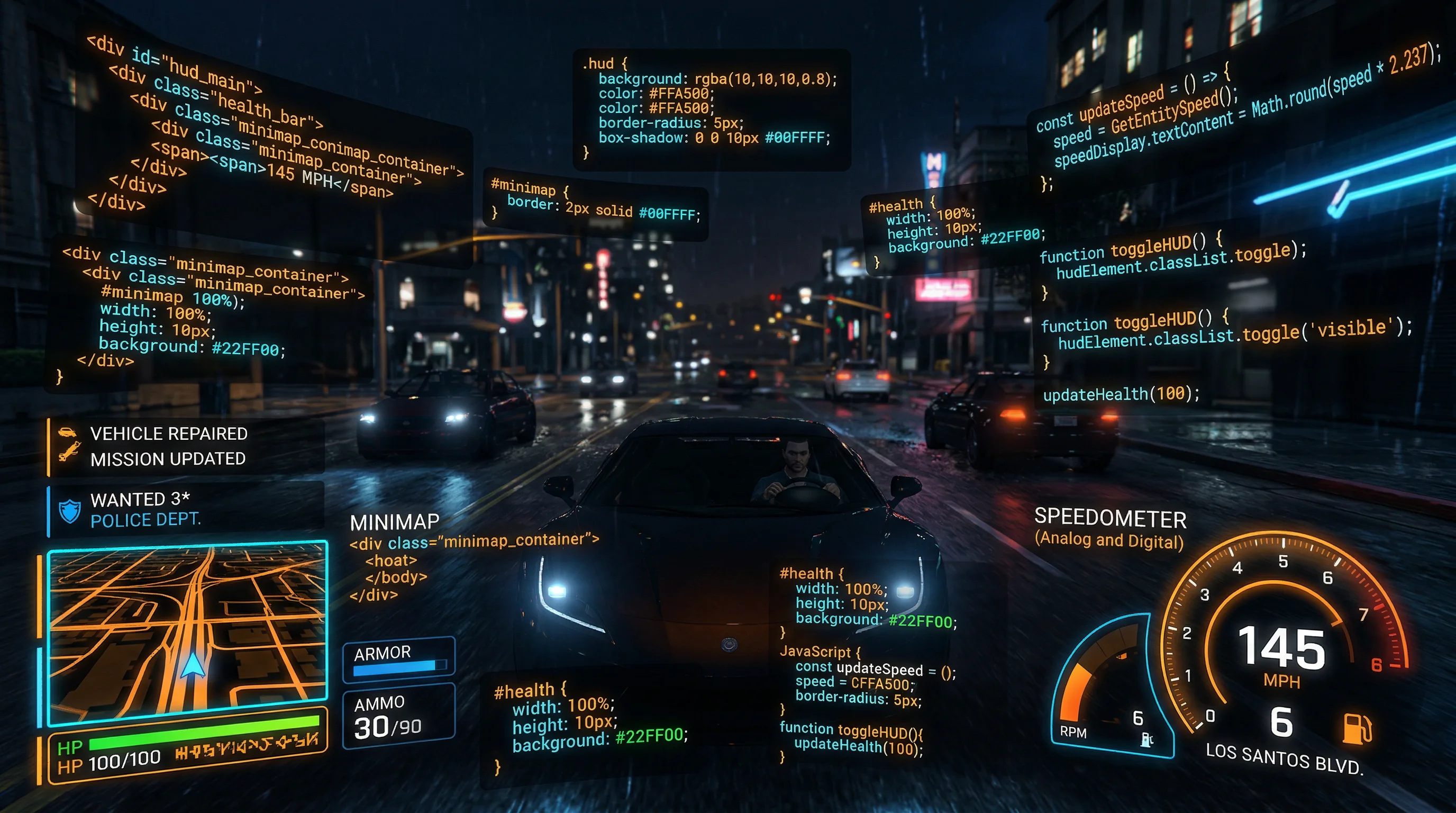
Every FiveM server has a HUD. Most run the same handful of off-the-shelf scripts — qb-hud, ps-hud, or whatever came bundled with their framework. Building your own HUD from scratch using NUI gives you something none of those can provide: complete control over every pixel, animation, and data point on screen. This tutorial walks you through the entire process, from an empty folder to a fully functional HUD with health, armor, a speedometer, and framework-integrated hunger and thirst — all with real, working code you can copy and use immediately.
Check out the FiveM HUD comparison guide if you want to evaluate existing options before deciding to build your own.
Why Build a Custom HUD?
Before diving into code, it is worth understanding what you actually gain by building a HUD from scratch instead of installing an existing one.
Full design control. Pre-built HUDs have opinionated layouts, color schemes, and element sizing. Customizing them means fighting against someone else's CSS and Lua logic. When you build your own, the design starts blank — you decide where everything goes, how it looks, and how it animates.
Performance optimization. You write exactly the update loops you need and nothing else. No dead code from features you don't use, no hidden intervals checking data your server doesn't track. A hand-rolled HUD can be leaner than any general-purpose script.
Unique server identity. Your HUD is one of the first things a new player sees. A distinctive, well-crafted UI signals that your server takes quality seriously. Players remember servers with a cohesive visual identity.
Learning NUI properly. Understanding the NUI system is foundational for any FiveM developer. Phone apps, menus, loading screens, radial menus — they all use the same architecture. Mastering it through a HUD project unlocks everything else.
Prerequisites
You need a working FiveM server before starting. Beyond that:
- VS Code — or any editor, but VS Code with the Lua and HTML extensions gives you syntax highlighting and autocomplete for both sides of the stack.
- Basic Lua knowledge — you need to understand variables, functions, and tables. You do not need to be a Lua expert.
- HTML, CSS, and JavaScript fundamentals — the NUI layer is a web page. If you can build a basic static site, you have enough to follow along.
- A test server you can restart quickly — you will be restarting the resource frequently during development.
Understanding NUI
NUI stands for Network User Interface. It is the system FiveM uses to render web content on top of the game. Under the hood, FiveM embeds a Chromium browser (CEF — Chromium Embedded Framework) that renders HTML, CSS, and JavaScript alongside the game. Your HUD is literally a web page drawn on top of GTA V.
The communication flow works like this:
Lua to JavaScript: Your client-side Lua script reads game data (health, speed, hunger values) and sends it to the NUI layer using SendNUIMessage. This triggers a message event in the browser, and your JavaScript receives the data as a plain JavaScript object.
JavaScript to Lua: When the NUI needs to send something back to the game (for example, when a player closes a menu), JavaScript calls fetch('https://resource-name/callback-name', { method: 'POST', body: JSON.stringify(data) }). This triggers a registered NUI callback on the Lua side.
For a HUD, you mostly use Lua-to-JavaScript communication — the game state flows into the browser and updates the DOM. The HUD does not need to send much back to Lua, though you can use callbacks to signal things like the HUD being fully loaded.
One important distinction: NUI is not a regular browser tab. It cannot make arbitrary network requests to the internet. It runs in the context of the resource and communicates with the game via the fetch protocol described above. Keep this in mind when you reach for external libraries — bundle them locally rather than loading from a CDN.
Project Setup
Create a folder inside your FiveM server's resources directory. Name it my-hud. The folder structure you are building toward looks like this:
resources/
└── my-hud/
    ├── fxmanifest.lua
    ├── client.lua
    └── nui/
        ├── index.html
        ├── style.css
        └── script.js
The fxmanifest.lua file is the resource manifest — it tells FiveM what files are part of this resource and how to use them. Here is the complete manifest:
fx_version 'cerulean'
game 'gta5'

name 'my-hud'
description 'Custom NUI HUD'
version '1.0.0'

ui_page 'nui/index.html'

files {
    'nui/index.html',
    'nui/style.css',
    'nui/script.js'
}

client_scripts {
    'client.lua'
}
The ui_page directive points to the HTML file that will be rendered as the NUI overlay. The files block tells FiveM which files to include in the resource so they are accessible from the NUI layer. Add my-hud to your server.cfg with ensure my-hud, then restart the server. The resource will load but nothing will appear on screen yet — the HTML page exists but has no content.
Step 1: HTML Template
The HTML file defines the structure of your HUD. It does not need to be complex — the DOM elements you define here are what your JavaScript will update with live data.
<!DOCTYPE html>
<html lang="en">
<head>
    <meta charset="UTF-8">
    <meta name="viewport" content="width=device-width, initial-scale=1.0">
    <title>HUD</title>
    <link rel="stylesheet" href="style.css">
</head>
<body>
    <div id="hud-container">

        <!-- Status bars: health, armor -->
        <div id="status-bars">
            <div class="bar-row">
                <span class="bar-icon">♥</span>
                <div class="bar-track">
                    <div class="bar-fill" id="health-bar"></div>
                </div>
            </div>
            <div class="bar-row">
                <span class="bar-icon">⛊</span>
                <div class="bar-track">
                    <div class="bar-fill" id="armor-bar"></div>
                </div>
            </div>
            <div class="bar-row">
                <span class="bar-icon">🍖</span>
                <div class="bar-track">
                    <div class="bar-fill" id="hunger-bar"></div>
                </div>
            </div>
            <div class="bar-row">
                <span class="bar-icon">💧</span>
                <div class="bar-track">
                    <div class="bar-fill" id="thirst-bar"></div>
                </div>
            </div>
        </div>

        <!-- Speedometer: only visible in vehicles -->
        <div id="speedometer" class="hidden">
            <div id="speed-value">0</div>
            <div id="speed-unit">km/h</div>
        </div>

    </div>

    <script src="script.js"></script>
</body>
</html>
The structure is intentionally minimal. Four bar rows handle health, armor, hunger, and thirst. A separate speedometer block shows vehicle speed and hides itself when the player is on foot. The hidden class on the speedometer starts it invisible — JavaScript will toggle this class based on whether the player is in a vehicle.
Step 2: CSS Styling
The CSS handles layout, colors, and animations. The key requirement for any HUD overlay is that the background must be completely transparent — you are layering UI elements over the game world, not replacing it.
/* Reset and base */
* {
    margin: 0;
    padding: 0;
    box-sizing: border-box;
}

body {
    background: transparent;
    overflow: hidden;
    width: 100vw;
    height: 100vh;
    font-family: 'Segoe UI', Tahoma, Geneva, Verdana, sans-serif;
    user-select: none;
}

/* Main container — bottom-left anchored */
#hud-container {
    position: fixed;
    bottom: 40px;
    left: 40px;
    display: flex;
    flex-direction: column;
    gap: 16px;
}

/* Status bars block */
#status-bars {
    display: flex;
    flex-direction: column;
    gap: 6px;
}

.bar-row {
    display: flex;
    align-items: center;
    gap: 8px;
}

.bar-icon {
    font-size: 13px;
    width: 16px;
    text-align: center;
    filter: drop-shadow(0 0 3px rgba(0, 0, 0, 0.8));
}

.bar-track {
    width: 140px;
    height: 8px;
    background: rgba(0, 0, 0, 0.45);
    border-radius: 4px;
    overflow: hidden;
    backdrop-filter: blur(2px);
    border: 1px solid rgba(255, 255, 255, 0.08);
}

.bar-fill {
    height: 100%;
    border-radius: 4px;
    width: 100%;
    transition: width 0.3s ease, background-color 0.4s ease;
}

/* Health bar color coding */
#health-bar {
    background: linear-gradient(90deg, #e74c3c, #e67e22);
}

/* Armor bar */
#armor-bar {
    background: linear-gradient(90deg, #3498db, #2980b9);
}

/* Hunger bar */
#hunger-bar {
    background: linear-gradient(90deg, #e67e22, #f39c12);
}

/* Thirst bar */
#thirst-bar {
    background: linear-gradient(90deg, #00bcd4, #0097a7);
}

/* Low health warning — bar pulses red */
#health-bar.critical {
    background: #e74c3c;
    animation: pulse-critical 0.8s ease-in-out infinite;
}

@keyframes pulse-critical {
    0%, 100% { opacity: 1; }
    50% { opacity: 0.55; }
}

/* Speedometer */
#speedometer {
    display: flex;
    flex-direction: column;
    align-items: center;
    background: rgba(0, 0, 0, 0.5);
    border: 1px solid rgba(255, 255, 255, 0.1);
    border-radius: 12px;
    padding: 10px 18px;
    backdrop-filter: blur(4px);
    min-width: 90px;
    transition: opacity 0.3s ease;
}

#speed-value {
    font-size: 32px;
    font-weight: 700;
    color: #fff;
    line-height: 1;
    text-shadow: 0 0 12px rgba(255, 255, 255, 0.3);
}

#speed-unit {
    font-size: 11px;
    color: rgba(255, 255, 255, 0.6);
    text-transform: uppercase;
    letter-spacing: 1px;
    margin-top: 2px;
}

/* Utility */
.hidden {
    display: none !important;
}
A few things worth noting. The body background is transparent — this is non-negotiable for any HUD overlay. The user-select: none prevents text selection which would look strange in a game. The bar fills use CSS transition for smooth updates — when JavaScript changes the width, it animates rather than jumping. The critical health pulse animation triggers when the health bar gets the critical class from JavaScript.
Step 3: Client Lua Script
The Lua client script does the heavy lifting: reading game state on a timer and pushing it to the NUI layer. The script runs a loop every 200 milliseconds, reads health, armor, and vehicle data, then calls SendNUIMessage to forward the data to JavaScript.
-- client.lua

local isHudVisible = true
local lastHealth = -1
local lastArmor = -1
local lastSpeed = -1
local lastHunger = -1
local lastThirst = -1

-- Hide the native GTA HUD components we are replacing
local function hideNativeHud()
    -- Hide health bar (component 1)
    HideHudComponentThisFrame(1)
    -- Hide armor bar (component 2)
    HideHudComponentThisFrame(2)
    -- Hide vehicle name display (component 6)
    HideHudComponentThisFrame(6)
    -- Hide area name (component 7) - optional
    -- HideHudComponentThisFrame(7)
end

-- Convert GTA health (0-200) to percentage (0-100)
-- GTA health baseline is 100, max is 200
local function getHealthPercent(ped)
    local health = GetEntityHealth(ped)
    -- Health ranges from 100 (alive, no HP) to 200 (full HP)
    -- Below 100 means dead
    local percent = math.max(0, math.min(100, (health - 100)))
    return percent
end

-- Main HUD update loop
CreateThread(function()
    while true do
        Wait(200) -- Update every 200ms, not every frame

        if isHudVisible then
            local ped = PlayerPedId()
            local inVehicle = IsPedInAnyVehicle(ped, false)

            -- Read health and armor
            local health = getHealthPercent(ped)
            local armor = GetPedArmour(ped) -- Already 0-100

            -- Read speed (only meaningful in vehicle)
            local speed = 0
            if inVehicle then
                local vehicle = GetVehiclePedIsIn(ped, false)
                -- GetEntitySpeed returns m/s, multiply by 3.6 for km/h
                speed = math.floor(GetEntitySpeed(vehicle) * 3.6)
            end

            -- Read hunger/thirst (framework-specific — see Step 6)
            local hunger = getHunger()
            local thirst = getThirst()

            -- Delta check: only send NUI message if values changed
            -- This avoids unnecessary DOM updates every 200ms
            local changed = (
                health ~= lastHealth or
                armor ~= lastArmor or
                speed ~= lastSpeed or
                hunger ~= lastHunger or
                thirst ~= lastThirst
            )

            if changed then
                lastHealth = health
                lastArmor = armor
                lastSpeed = speed
                lastHunger = hunger
                lastThirst = thirst

                SendNUIMessage({
                    type = 'updateHud',
                    health = health,
                    armor = armor,
                    speed = speed,
                    inVehicle = inVehicle,
                    hunger = hunger,
                    thirst = thirst
                })
            end

            -- Hide native HUD components every frame when visible
            hideNativeHud()
        end
    end
end)

-- A separate tight loop just for hiding native HUD elements
-- This runs every frame to prevent the native HUD from flickering back
CreateThread(function()
    while true do
        Wait(0)
        if isHudVisible then
            hideNativeHud()
        end
    end
end)

-- Toggle HUD visibility (optional keybind)
RegisterCommand('togglehud', function()
    isHudVisible = not isHudVisible
    SendNUIMessage({
        type = 'toggleHud',
        visible = isHudVisible
    })
end, false)
The delta check is the most important performance detail here. Without it, you push a SendNUIMessage call every 200ms regardless of whether anything changed. With it, you only trigger JavaScript DOM updates when the data actually changed. Over a long play session this significantly reduces the amount of unnecessary work.
The two separate threads — one at 200ms for data updates and one at 0ms for hiding native HUD elements — are intentional. The HideHudComponentThisFrame function must be called every frame or GTA will re-render the native component on the next frame. The 200ms loop handles data; the per-frame loop handles the hide calls.
Step 4: JavaScript
The JavaScript file receives messages from Lua and updates the DOM accordingly. Keep this file focused: receive data, update elements, nothing else.
// script.js

// Cache DOM references once — avoid querying the DOM on every update
const healthBar = document.getElementById('health-bar');
const armorBar = document.getElementById('armor-bar');
const hungerBar = document.getElementById('hunger-bar');
const thirstBar = document.getElementById('thirst-bar');
const speedometer = document.getElementById('speedometer');
const speedValue = document.getElementById('speed-value');
const hudContainer = document.getElementById('hud-container');

/**
 * Update a bar fill element to the given percentage.
 * Applies a 'critical' class below 25% for visual warning.
 */
function updateBar(element, percent, criticalThreshold = 25) {
    element.style.width = `${Math.max(0, Math.min(100, percent))}%`;

    if (percent <= criticalThreshold) {
        element.classList.add('critical');
    } else {
        element.classList.remove('critical');
    }
}

/**
 * Handle all incoming NUI messages from the Lua client script.
 */
window.addEventListener('message', (event) => {
    const data = event.data;

    if (data.type === 'updateHud') {
        // Update status bars
        updateBar(healthBar, data.health);
        updateBar(armorBar, data.armor, 0); // Armor: no critical state
        updateBar(hungerBar, data.hunger);
        updateBar(thirstBar, data.thirst);

        // Update speedometer visibility and value
        if (data.inVehicle) {
            speedometer.classList.remove('hidden');
            speedValue.textContent = data.speed;
        } else {
            speedometer.classList.add('hidden');
        }
    }

    if (data.type === 'toggleHud') {
        hudContainer.style.display = data.visible ? 'flex' : 'none';
    }
});
Caching DOM references at the top is essential. document.getElementById is not expensive, but calling it on every 200ms update adds up over a long gaming session. Cache the references once when the page loads and reuse them throughout.
The updateBar function clamps the value between 0 and 100 before applying it as a width percentage. This prevents layout issues if a framework sends a value slightly out of range.
Step 5: Speedometer
The speedometer is already integrated in the code above, but here is a deeper look at the speed calculation and how to show both km/h and mph if your server needs imperial units.
-- In client.lua, expanded vehicle data section

local function getVehicleData(ped)
    if not IsPedInAnyVehicle(ped, false) then
        return {
            inVehicle = false,
            speed = 0,
            speedMph = 0,
            fuel = 0,
            gear = 0
        }
    end

    local vehicle = GetVehiclePedIsIn(ped, false)
    local rawSpeed = GetEntitySpeed(vehicle) -- meters per second

    -- Conversion factors
    local speedKmh = math.floor(rawSpeed * 3.6)
    local speedMph = math.floor(rawSpeed * 2.237)

    -- Fuel level (0.0 to 1.0, multiply by 100 for percentage)
    local fuel = math.floor(GetVehicleFuelLevel(vehicle))

    -- Current gear (0 = reverse, 1-8 = gears)
    local gear = GetVehicleCurrentGear(vehicle)

    return {
        inVehicle = true,
        speed = speedKmh,
        speedMph = speedMph,
        fuel = fuel,
        gear = gear
    }
end
// In script.js, update the vehicle section

function updateSpeedometer(vehicleData) {
    if (!vehicleData.inVehicle) {
        speedometer.classList.add('hidden');
        return;
    }

    speedometer.classList.remove('hidden');

    // Toggle between km/h and mph based on player preference
    // Store preference in localStorage
    const useImperial = localStorage.getItem('hud-imperial') === 'true';
    speedValue.textContent = useImperial ? vehicleData.speedMph : vehicleData.speed;
    document.getElementById('speed-unit').textContent = useImperial ? 'mph' : 'km/h';
}
Storing the unit preference in localStorage is a useful pattern — it persists across sessions without needing a server round-trip or database entry.
Step 6: Hunger and Thirst Integration
Hunger and thirst values live in your framework's player data, not in native GTA functions. The approach differs between QBCore and ESX. Add these functions to your client.lua:
-- client.lua — Framework integration

-- ============================================================
-- QBCore integration
-- ============================================================
local QBCore = nil

-- Try to get QBCore export (safe — returns nil if not installed)
if GetResourceState('qb-core') == 'started' then
    QBCore = exports['qb-core']:GetCoreObject()
end

local function getHungerQB()
    if not QBCore then return 100 end
    local playerData = QBCore.Functions.GetPlayerData()
    if playerData and playerData.metadata then
        return playerData.metadata.hunger or 100
    end
    return 100
end

local function getThirstQB()
    if not QBCore then return 100 end
    local playerData = QBCore.Functions.GetPlayerData()
    if playerData and playerData.metadata then
        return playerData.metadata.thirst or 100
    end
    return 100
end

-- ============================================================
-- ESX integration
-- ============================================================
local ESX = nil

if GetResourceState('es_extended') == 'started' then
    ESX = exports['es_extended']:getSharedObject()
end

local function getHungerESX()
    if not ESX then return 100 end
    local playerData = ESX.GetPlayerData()
    -- ESX stores hunger/thirst through esx_status or esx_basicneeds
    -- The exact field depends on which needs script you use
    if playerData and playerData.metadata then
        return playerData.metadata.hunger or 100
    end
    return 100
end

local function getThirstESX()
    if not ESX then return 100 end
    local playerData = ESX.GetPlayerData()
    if playerData and playerData.metadata then
        return playerData.metadata.thirst or 100
    end
    return 100
end

-- ============================================================
-- Auto-detect framework and expose unified functions
-- ============================================================
local function getHunger()
    if QBCore then
        return getHungerQB()
    elseif ESX then
        return getHungerESX()
    end
    -- Fallback: read from exports if another needs script provides them
    local ok, val = pcall(function()
        return exports['qs-inventory']:GetHunger()
    end)
    return ok and val or 100
end

local function getThirst()
    if QBCore then
        return getThirstQB()
    elseif ESX then
        return getThirstESX()
    end
    local ok, val = pcall(function()
        return exports['qs-inventory']:GetThirst()
    end)
    return ok and val or 100
end
The pcall wrappers around export calls are defensive programming for the FiveM environment. If the export doesn't exist, pcall catches the error rather than crashing your HUD script. This is especially useful in development when you are testing with a partial server setup.
If your server uses a custom needs script that provides exports, replace the fallback pcall blocks with calls to those specific exports. The pattern is always the same: get a number between 0 and 100 and return it.
Performance Optimization
A badly written HUD is one of the most common causes of client-side performance problems on FiveM servers. Here are the rules to follow.
Never update on every frame. A 200ms interval (5 updates per second) is more than fast enough for a HUD. Health, armor, hunger, and thirst do not change fast enough to justify per-frame polling. Reserve the per-frame thread exclusively for calls that must run every frame — like HideHudComponentThisFrame.
Delta-check before sending. The delta check in the Lua script prevents SendNUIMessage calls when data has not changed. This matters because SendNUIMessage serializes the Lua table to JSON and triggers a JavaScript event — neither is free.
-- Good: only send when something actually changed
if health ~= lastHealth or armor ~= lastArmor then
    SendNUIMessage({ type = 'updateHud', health = health, armor = armor })
    lastHealth = health
    lastArmor = armor
end

-- Bad: send every tick regardless
SendNUIMessage({ type = 'updateHud', health = health, armor = armor })
Minimize DOM operations in JavaScript. Batch your DOM writes. In the JavaScript above, all updates happen in a single event handler triggered once per Lua update. Avoid writing small, scattered update functions that each touch the DOM independently.
Use CSS transitions instead of JavaScript animations. The smooth bar animations come from transition: width 0.3s ease in the CSS, not from JavaScript. CSS transitions are hardware-accelerated and free from a scripting perspective. JavaScript animation loops using setInterval or manual requestAnimationFrame are unnecessary for simple value transitions.
Disable the HUD update loop when paused. When the player opens the pause menu, there is no need to update the HUD. Add a check:
-- In your update thread
if IsPlayerDead(PlayerId()) or IsPauseMenuActive() then
    Wait(500) -- Slow down significantly when paused or dead
    goto continue
end
Avoid creating JavaScript objects on every update. The DOM query cache at the top of script.js already handles this. Beyond that, avoid patterns like building a new array or object structure every time the message event fires — manipulate existing DOM elements in place.
Debugging
Debugging NUI is one area where new FiveM developers get stuck. The tools are there — they just require knowing where to look.
CEF Remote DevTools. When your FiveM client is running with the +set flag for CEF debugging (or if your server has it enabled), you can open http://localhost:13172 in a Chrome or Chromium browser on the same machine. This opens a full Chrome DevTools instance connected to the NUI layer. You get the Elements panel, Console, Network tab, and JavaScript debugger — exactly what you would use for regular web development.
console.log in NUI. Inside your JavaScript, console.log writes to the CEF DevTools console, not the FiveM console. Use it freely during development:
window.addEventListener('message', (event) => {
    console.log('NUI message received:', event.data);
    // ... rest of handler
});
Browser mock testing. Open nui/index.html directly in your desktop browser. The HUD will render but will not receive real game data. You can manually trigger the update logic to test layout and styling:
// Add this at the bottom of script.js during development only
// Remove before shipping
if (!window.invokeNative) {
    // We are in a browser, not in FiveM — inject mock data
    setTimeout(() => {
        window.dispatchEvent(new MessageEvent('message', {
            data: {
                type: 'updateHud',
                health: 75,
                armor: 40,
                speed: 80,
                inVehicle: true,
                hunger: 60,
                thirst: 30
            }
        }));
    }, 500);
}
This lets you iterate on HTML and CSS quickly without restarting the FiveM resource every time.
Common errors and fixes:
- HUD not showing at all — Check that
ui_pageinfxmanifest.luapoints to the correct file path relative to the resource root. Check the FiveM console for file-not-found errors. - JavaScript not running — Ensure the
<script>tag at the bottom ofindex.htmlreferences the correct path. Check the CEF console for syntax errors. - NUI messages not arriving — Confirm the resource is started (
ensure my-hudinserver.cfg). Verify thetypefield inSendNUIMessagematches what JavaScript is checking in themessageevent handler. - Native HUD elements still showing — The
HideHudComponentThisFramecalls must happen every frame, not once. Ensure the per-frame thread is running without aWaitgreater than 0. - Performance warning in F8 console — Your update thread is probably running too frequently. Increase the
Waitinterval or add the delta-check pattern.
Modern Approach: React or Vue with Vite
Everything above uses vanilla HTML, CSS, and JavaScript — a perfectly valid approach for most HUDs. But if your HUD grows in complexity (multiple pages, user settings, conditional rendering, complex state management), a modern frontend framework becomes worthwhile.
Why React or Vue for complex HUDs. React's component model and state management make it much easier to reason about a HUD with many interactive elements. State changes automatically re-render only the affected parts of the UI. Vue's reactivity system works similarly. Both ecosystems offer mature tooling.
fivem-nui-react-lib. The community-maintained fivem-nui-react-lib package provides React hooks that abstract the NUI message and callback systems. Instead of a raw addEventListener, you use typed hooks:
import { useNuiEvent } from 'fivem-nui-react-lib';

interface HudData {
    health: number;
    armor: number;
    speed: number;
    inVehicle: boolean;
}

export const HudComponent: React.FC = () => {
    const [hudData, setHudData] = useState<HudData>({ health: 100, armor: 0, speed: 0, inVehicle: false });

    useNuiEvent<HudData>('updateHud', (data) => {
        setHudData(data);
    });

    return (
        <div className="hud-container">
            <HealthBar value={hudData.health} />
            <ArmorBar value={hudData.armor} />
            {hudData.inVehicle && <Speedometer speed={hudData.speed} />}
        </div>
    );
};
Vite build setup. Vite handles bundling and provides near-instant hot module replacement during development. Your fxmanifest.lua points to the Vite build output (dist/index.html), and you run vite dev during development — changes in your React components reflect in-game almost immediately without restarting the resource.
The build output is plain HTML, CSS, and JavaScript — the FiveM resource itself does not need to know anything about React. This means the NUI communication stays identical; only the development workflow changes.
For a small HUD with a few bars and a speedometer, vanilla JS is faster to set up and easier to reason about. Reach for React or Vue when you have 10+ UI components, multiple HUD pages, or complex state that needs to be shared across components.
Open-Source HUDs to Study
Reading production HUD code is one of the fastest ways to improve your own. These repositories are worth studying:
-
ox_hud —
github.com/overextended/ox_hud— The Overextended team's HUD. Clean architecture, well-optimized, integrates natively with the Overextended stack. Study the Lua-to-JS data flow and how they structure their update intervals. -
qb-hud —
github.com/qbcore-framework/qb-hud— The QBCore default HUD. Good reference for framework-specific data reading (QBCore player data, metadata fields). Simple enough to understand quickly. -
nh-keyboard —
github.com/nerohiro/nh-keyboard— Notable for its unique visual design. Shows how to create unconventional HUD layouts that break from the standard bottom-corner bar pattern. -
17mov_HUD —
github.com/17MOV/17mov_HUD— A modern, polished HUD with smooth animations. Study the CSS animation techniques and how the speedometer needle is implemented. -
r_hud —
github.com/rockdude229/r_hud— Minimalist and highly readable code. Good starting point if you want to understand a clean implementation without feature bloat. -
mHud —
github.com/MichaelCode04/mHud— Shows an approach to organizing larger HUD codebases across multiple files. -
0r-hud —
github.com/0resmon/0r-hud— Features a distinctive circular/radial layout. Useful to study if you want to move beyond rectangular bar designs. -
wasabi_hud —
github.com/wasabirobby/wasabi_hud— Strong example of framework-agnostic design. The config system for framework detection is particularly worth reading.
If you would rather use a premium, production-tested HUD with advanced features and support, browse the VertexMods shop for professional HUD scripts built for high-population servers.
FAQ
Do I need to know React or Vue to build a FiveM HUD?
No. Vanilla JavaScript is completely sufficient for most HUDs. React and Vue become useful when a HUD grows into a complex multi-page interface with many interactive elements. Start with vanilla JS and migrate to a framework only if you genuinely need it.
Can my HUD break other players' performance or only mine?
NUI runs client-side, inside each player's FiveM client. A badly written HUD only affects the player running it. That said, if your resource has server-side components (which a simple HUD should not), those can affect all players.
How do I add a minimap to my custom HUD?
The native GTA minimap is a separate HUD component (component 0) managed by FiveM's HUD system. You can position it by manipulating SetRadarZoom and LockMinimapAngle. Alternatively, several community resources expose a custom minimap NUI component — ox_minimap is the most commonly used.
Why is my HUD invisible when I join the server but appears after a few seconds?
The NUI page loads after the client script starts. If your Lua script sends messages before the HTML page has finished loading, those messages are lost. Add a Wait(2000) at the start of your client script before beginning the update loop to ensure the NUI page is ready.
Can I use external fonts or icon libraries?
Yes, but bundle them locally. Copy the font files into your nui/ folder and reference them with @font-face in your CSS. Do not load from Google Fonts or a CDN — NUI cannot make external network requests in the normal sense, and CDN requests may fail or cause console errors.
How do I show the HUD only when the player is spawned?
Trigger a SendNUIMessage({ type = 'setVisible', visible = false }) in your resource start code or onClientResourceStart event, and only set it visible after the player has spawned into the world. Most frameworks fire an event like QBCore:Client:OnPlayerLoaded or esx:playerLoaded that you can hook into.
My bar animations look choppy. How do I smooth them out?
Check that your CSS transition property is on the bar-fill element, not on the bar-track container. Also verify you are not calling style.width multiple times per JavaScript event handler — write the width once per update cycle.
Is there a performance difference between sending one large message or many small messages?
One larger, batched message is more efficient. Each SendNUIMessage call serializes data to JSON and fires a JavaScript event. Batch all your HUD data into a single message per update cycle rather than sending separate messages for health, armor, speed, and so on.