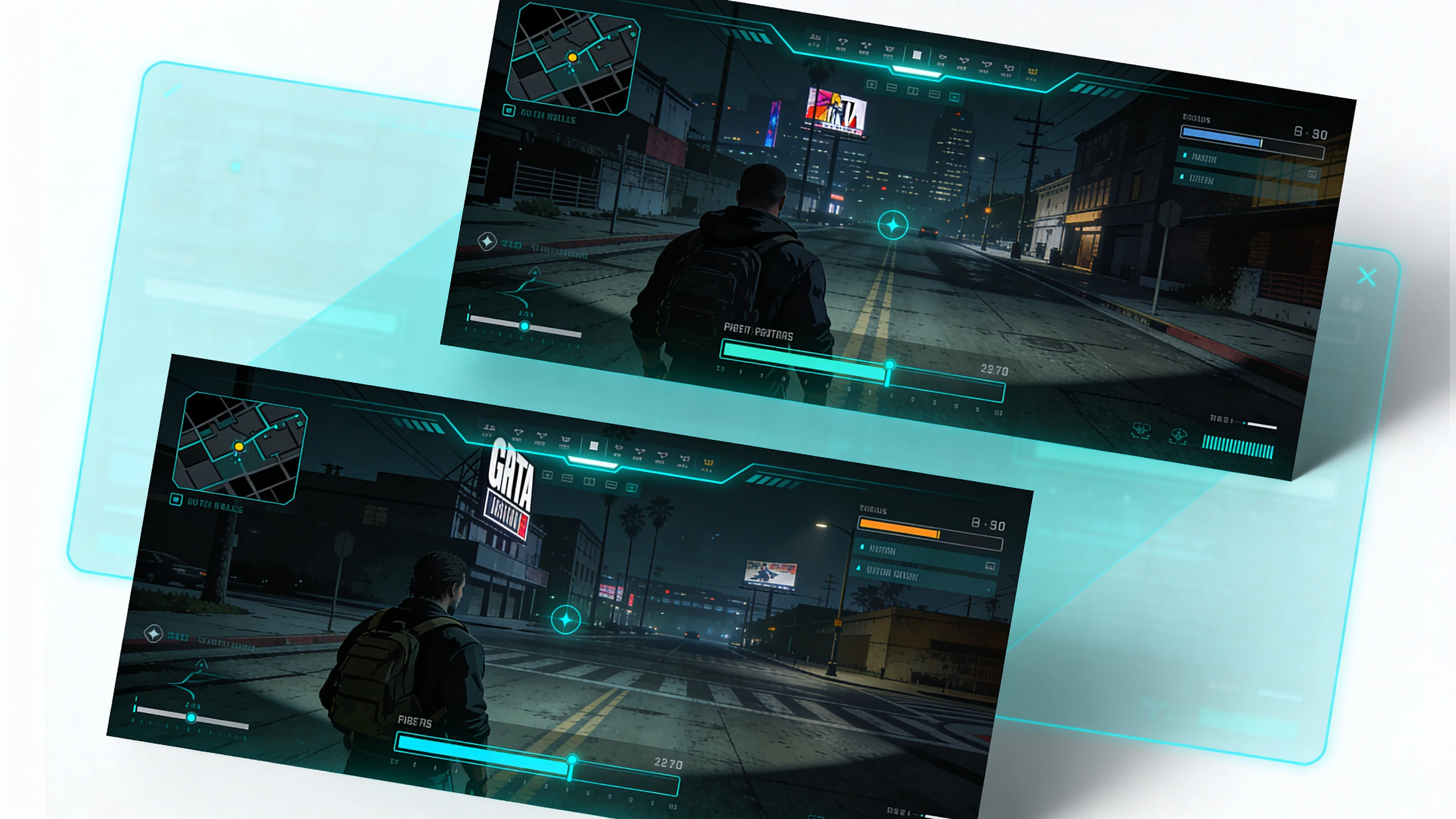
FiveM HUD Comparison Guide: Best Options for 2026
The HUD (Heads-Up Display) is one of the first things players notice when they join your FiveM server. It shows critical information like health, armor, hunger, thirst, and other status indicators that players need at a glance. Choosing the right HUD affects both the visual appeal and the gameplay experience of your server. This guide compares the best FiveM HUDs available in 2026 and helps you pick the one that fits your server.
What Does a FiveM HUD Do?
A FiveM HUD replaces the default GTA V interface elements with custom displays designed for roleplay servers. While the vanilla GTA HUD shows basic health and armor, FiveM HUDs add roleplay-specific information:
- Health and armor bars — Visual indicators of player survivability
- Hunger and thirst — Needs system displays that drive roleplay interactions
- Stress level — Mental health indicator affected by criminal activity, combat, or dangerous driving
- Stamina — Running and swimming endurance
- Oxygen — Underwater breathing indicator
- Vehicle speed — Speedometer display when driving
- Fuel level — Vehicle fuel gauge
- Minimap customization — Circle, square, or hidden minimap with custom styling
- Status icons — Seatbelt, cruise control, engine status, lights
- Location display — Current street name and area
A well-designed HUD presents all this information without cluttering the screen. The best HUDs are informative yet unobtrusive, letting players focus on the gameplay while keeping essential data accessible.
Top FiveM HUDs in 2026
qb-hud
The default HUD included with QBCore. It provides a functional, no-frills display with all essential status bars. qb-hud uses a bottom-right layout with colored bars for health, armor, hunger, thirst, stress, and oxygen. It includes a basic speedometer and fuel gauge. While it is not the most visually striking option, it works reliably out of the box with zero additional configuration needed for QBCore servers.
esx_hud / es_extended HUD
The ESX ecosystem includes several HUD options. The standard ESX HUD provides basic status display compatible with the ESX framework. It covers health, armor, and needs systems. Many ESX servers replace it with a more modern alternative, but the default works well for servers prioritizing stability over aesthetics.
nh-keyboard HUD
One of the most visually distinctive HUDs available. nh-keyboard features a unique design with status indicators arranged in creative layouts. It stands out for its modern aesthetic and smooth animations. The HUD supports extensive customization through its config file, allowing you to adjust colors, positions, and which elements are displayed. It works with both ESX and QBCore frameworks.
boii-hud
A modern, feature-rich HUD with a clean design philosophy. boii-hud offers multiple layout options, smooth animations, and comprehensive status tracking. It supports a wide range of status indicators and includes built-in speedometer functionality. The developer provides regular updates and the HUD is well-optimized for performance. It is framework-agnostic and works with ESX, QBCore, and standalone setups.
lj-hud
A lightweight, performance-focused HUD that prioritizes minimal resource usage. lj-hud provides essential status displays without the visual overhead of more complex HUDs. It is particularly popular on servers with higher player counts where every bit of performance matters. The design is clean and minimal, presenting information efficiently without unnecessary decorations.
ps-hud (Project Sloth)
Created by the Project Sloth team, ps-hud is designed specifically for QBCore servers. It features a modern UI with customizable elements, smooth transitions, and good integration with other Project Sloth resources. The speedometer design is particularly well-regarded, and the overall aesthetic is polished and professional.
ox_hud (Overextended)
For servers running QBOX or the Overextended stack, ox_hud integrates natively with ox_lib and other Overextended resources. It uses the ox_lib UI framework for consistent styling across all server interfaces. Performance is excellent due to the optimized rendering approach used by Overextended libraries.
Feature Comparison Table
| Feature | qb-hud | nh-keyboard | boii-hud | lj-hud | ps-hud |
|---|---|---|---|---|---|
| Framework | QBCore | Multi | Multi | Multi | QBCore |
| Health/Armor | Yes | Yes | Yes | Yes | Yes |
| Hunger/Thirst | Yes | Yes | Yes | Yes | Yes |
| Stress | Yes | Yes | Yes | Yes | Yes |
| Stamina/Oxygen | Yes | Yes | Yes | Yes | Yes |
| Speedometer | Basic | Advanced | Advanced | Basic | Advanced |
| Fuel Display | Yes | Yes | Yes | Yes | Yes |
| Minimap Customization | Basic | Advanced | Advanced | Basic | Advanced |
| Seatbelt/Cruise | Yes | Yes | Yes | Limited | Yes |
| Street Name Display | Yes | Yes | Yes | No | Yes |
| Animations | Minimal | Smooth | Smooth | None | Smooth |
| Layout Options | Fixed | Configurable | Multiple | Fixed | Configurable |
| Performance Impact | Low | Medium | Low-Medium | Very Low | Low-Medium |
| Price | Free | Free/Paid | Free | Free | Free |
Performance Impact
HUDs run continuously on the client side, updating every frame or at regular intervals. This makes performance optimization particularly important:
Low-impact HUDs (qb-hud, lj-hud) use simple HTML/CSS with minimal JavaScript processing. They update status values at fixed intervals rather than every frame, keeping CPU usage low. These are ideal for servers with 100+ players or older client hardware.
Medium-impact HUDs (nh-keyboard, boii-hud, ps-hud) use more complex rendering with animations, gradients, and dynamic layouts. The visual polish comes at a small performance cost. For most modern gaming PCs, the difference is negligible, but it can add up on lower-end systems.
To minimize HUD performance impact:
- Disable status elements you do not use (e.g., if your server has no stress system, hide the stress bar)
- Reduce update frequency in the config if the HUD supports it
- Avoid HUDs that poll native functions every frame — look for event-driven updates
- Test with your target player count to identify any issues at scale
Installation Guide
Installing a HUD follows a standard pattern regardless of which one you choose:
Step 1: Remove Your Current HUD
Ensure your current HUD resource is stopped and removed from server.cfg. Running two HUDs simultaneously causes conflicts and visual glitches.
Step 2: Download and Place
Download the HUD resource and place it in your resources folder. Many servers organize UI resources in a subfolder like resources/[ui].
Step 3: Install Dependencies
Check the HUD documentation for dependencies. Common requirements include ox_lib for menu systems, your framework core resource, and sometimes specific font or icon packages.
Step 4: Configure
Edit the HUD config file to match your server setup. Key settings include:
- Which status bars to show (disable unused ones)
- Color scheme to match your server branding
- Speedometer units (km/h vs mph)
- Minimap style and visibility settings
- Update intervals for different status indicators
Step 5: Add to server.cfg
Add ensure hud_resource_name to your server.cfg. The HUD should load after your framework core and any dependency libraries.
Customization Tips
Most HUDs support extensive customization through their config files and CSS styling:
- Color scheme — Match your HUD colors to your server brand. Consistent visual identity across your server (loading screen, HUD, phone, menus) creates a professional impression.
- Element positioning — Some HUDs let you reposition elements on screen. Keep critical information in the player peripheral vision — bottom corners are the standard placement.
- Conditional display — Configure status bars to only appear when relevant. For example, show the oxygen bar only when underwater, or the fuel gauge only when in a vehicle. This reduces screen clutter during normal gameplay.
- Custom icons — Replace default icons with custom ones that match your server theme. Most HUDs use Font Awesome or custom SVG icons that can be swapped.
Framework Compatibility
HUD compatibility depends on how the HUD reads player data:
QBCore HUDs (qb-hud, ps-hud) read data from QBCore player objects and events. They work immediately on QBCore servers but require bridges or modifications for other frameworks.
ESX HUDs read data from ESX player objects and the es_extended API. Similar framework lock-in applies.
Multi-framework HUDs (nh-keyboard, boii-hud) include built-in framework detection or separate bridge files for each framework. These are the most flexible option if you might switch frameworks in the future.
Standalone HUDs read data directly from GTA natives without framework dependencies. They work on any server but may lack integration with framework-specific features like the needs system or job displays.
Final Thoughts
Your HUD is one of the most visible elements of your server identity. Choose one that balances visual appeal with performance, matches your server aesthetic, and provides the information your players need without overwhelming them. Start with a well-maintained, popular option — you can always switch later as your server vision evolves. The best HUD is the one your players never think about because it just works, presenting the right information at the right time without getting in the way of the roleplay experience.
Premium FiveM HUDs Available on VertexMods
Looking for a ready-to-install HUD for your FiveM server? VertexMods offers several premium HUD options with modern design and low resource usage:
- jg-hud — 30€ — JG HUD — feature-rich with animations
- ihud-v2 — 16€ — iHUD V2 — clean, minimal design
- modern-hud — 15€ — Modern HUD — sleek flat UI
- vipex-hud — 20€ — Vipex HUD — customizable panels
Stay in the Loop
Get the latest FiveM tutorials, mod releases, and exclusive updates delivered to your inbox.
No spam. Unsubscribe anytime.