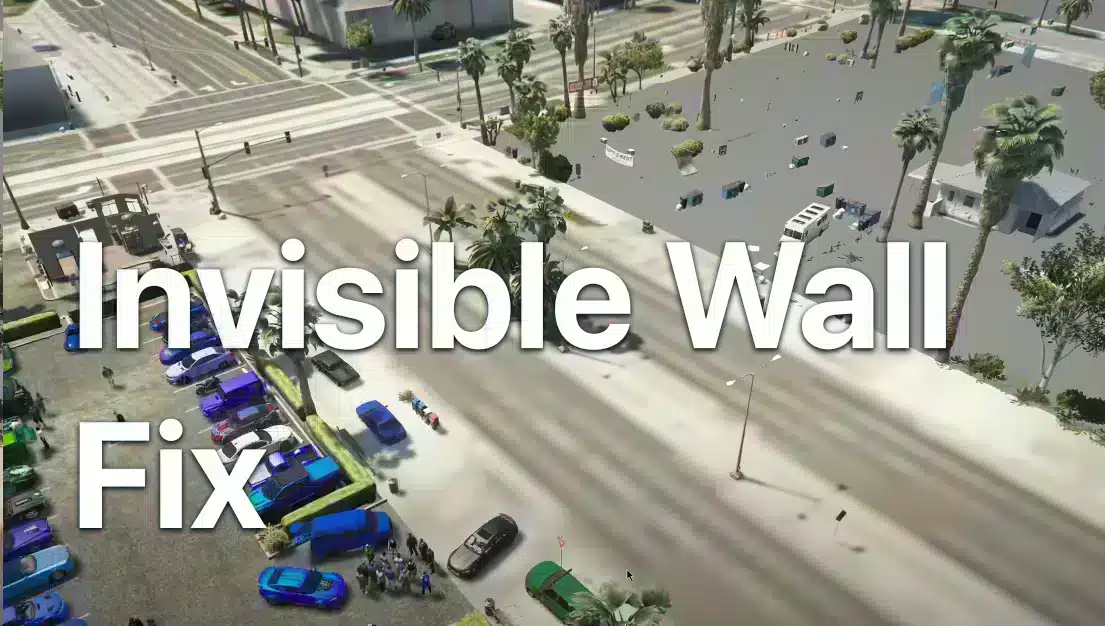
FiveM Invisible Wall Bug: Complete Fix Guide
FiveM Invisible Walls Bug Fix: Step‑by‑Step Guide
The invisible walls and ground issue in FiveM can ruin an otherwise smooth gaming experience. Whether you’re chasing a high‑speed convoy or simply exploring the map, the glitch that makes your character pass through scenery or drift endlessly in midair can be incredibly frustrating. Below is a comprehensive, easy‑to‑follow guide to diagnosing and fixing this problem, along with extra troubleshooting tips that keep your gameplay running smoothly.
—
Why Invisible Walls Occur in FiveM
– Texture & Mesh Misalignment: When the game engine can’t load certain textures or mesh files correctly, collision detection may fail, creating “soft” floors or walls.
– Graphics Settings Overload: Pushing the extended texture budget too far with limited VRAM can cause rendering delays, leaving collision tables incomplete.
– Corrupt Cache Files: Stale or damaged cache data can corrupt the rendering pipeline, making the game misbehave.
– Out‑of‑Date Software: An older FiveM client or missing game patches can result in incompatibilities that trigger these glitches.
Recognizing the cause is the first step to implementing the most effective fix.
—
Setting Up Your Graphics for Optimal Performance
Head to ESC Settings → Graphics
Open FiveM, press Esc to bring up the main menu, then navigate to Settings → Graphics. The Extended Texture Budget controls how many texture assets the engine attempts to load at once. Set this value to a higher tier but keep an eye on your total VRAM usage.
Why This Matters
– Higher Budget → More Assets: More textures can make the world look richer, but if your GPU runs out of memory, it may stream assets in and out unpredictably, leading to missing collision data.
– Balance is Key: For most mid‑range rigs, a value around 4000–6000 is a safe bet; adjust downward if you notice lag or stuttering.
Monitoring VRAM Usage
Use a tool like GPU-Z, MSI Afterburner, or the built‑in Windows Performance Monitor to check VRAM consumption while playing. If you hit 90%+ usage, pull the budget down a bit.
—
Clearing FiveM Cache for a Fresh Start
A corrupted cache is a common culprit. Clearing it forces FiveM to rebuild texture and mesh files from the original distribution, eliminating many invisible wall scenarios.
Quick Cache‑Clear Instructions
1. Locate the FiveM Shortcut
Find where your FiveM icon lives (Desktop, Start Menu, or your chosen folder).
2. Open the File Location
Right‑click the icon → Open file location.
3. Navigate to Application Data
You’ll see a folder named FiveM. Inside it, find Application Data.
4. Delete the Data Folder Content
Open data → delete everything within.
5. Empty the Recycle Bin
This ensures no deleted files linger and interfere.
Repeat the process after reinstalling FiveM to guarantee a clean environment.
—
Reinstalling FiveM for a Clean Slate
If clearing the cache doesn’t help, a full reinstall can resolve hidden inconsistencies.
1. Uninstall FiveM
Go to Control Panel → Programs → Uninstall a program and remove FiveM.
2. Delete Left‑over Files
Even after uninstalling, a small folder may remain in C:Users%USERNAME%AppDataLocalFiveM. Delete it.
3. Re‑download the Latest FiveM Client
Get the newest installer from the official website.
4. Reinstall
Follow the on‑screen prompts.
5. Launch and Let It Update
FiveM will automatically download any missing components and rebuild the cache.
—
Fine‑Tuning Eleven FPS‑Boosting Settings
Beyond clearing the cache and adjusting texture budgets, you can configure additional settings that improve overall performance and reduce the likelihood of invisible wall glitches.
1. Set Render Quality to “Low”
A lower render quality reduces processing overhead, giving more room for collision calculations.
2. Disable Anti‑Aliasing or Set to 2×
Anti‑aliasing can strain older GPUs; setting it to a minimal level or turning it off can help.
3. Turn Off Motion Blur
This reduces visual clutter and improves frame clarity, indirectly supporting better collision detection.
4. Predator Eye View
If you have the GTX series, enable “Predator Eye View” to improve downtown rendering performance.
5. Turn Off Ragdoll Collisions
This removes unnecessary physics interactions that can complicate collision logic.
—
Test Your Fixes in a Controlled Environment
After applying each change, launch a single‑player session or a private server to observe the results. Look for:
– Smooth navigation across the world without drifting or clipping.
– Consistent frame rates (above 30 fps for most desktops).
– No stuttering when moving near large structures.
If the issue persists, note any patterns: does it happen near certain textures, high‑altitude areas, or during specific server events? Record those details to share with community forums or FiveM support.
—
Quick Recap: The Ultimate FiveM Invisible Walls Bug Fix
1. Increase Extended Texture Budget but keep VRAM usage reasonable.
2. Clear FiveM Cache to remove corrupted assets.
3. Reinstall FiveM if cache clearance fails.
4. Adjust Secondary Settings (render quality, anti‑aliasing, etc.) for performance.
5. Test in a controlled session and troubleshoot any remaining anomalies.
These steps form the core of troubleshooting invisible walls and ground problems. By keeping your graphics balanced and your cache fresh, you’ll enjoy uninterrupted gameplay and focus on what matters most: the adventure.
—
Final Word
Disabling invisible walls isn’t one‑size‑fits‑all; it hinges on your system’s specifics and the current state of FiveM’s assets. Following the guide above guarantees that your environment is as clean and efficient as possible. Keep an eye on performance metrics, and always be ready to tweak your settings when newer updates roll out. With these practices, your journey through the digital streets will remain seamless, free of awkward ghostly barriers.
Bleib auf dem Laufenden
Erhalte die neuesten FiveM-Tutorials, Mod-Releases und exklusive Updates direkt in dein Postfach.
Kein Spam. Jederzeit abbestellbar.