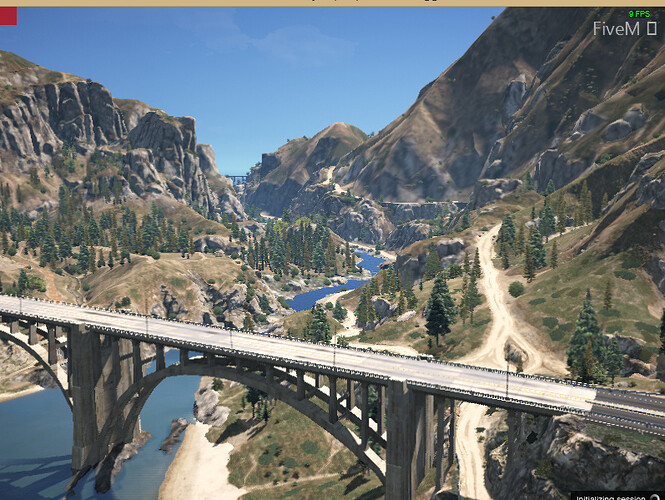
Disable Bridge Element in FiveM Loading Screen
This tutorial explains how to remove the bridge from FiveM server loading screen
by creating or modifying a loading screen resource.
Prerequisites
- FiveM server access with resource modification permissions
- Basic understanding of HTML/CSS
- a Text editor like Notepad++ (or the default notepad of Windows)
Method 1: Create New Loading Screen Resource
Step 1: Create Resource Structure
loadingscreen/
├── fxmanifest.lua
├── index.html
└── style.css
Step 2: Configure fxmanifest.lua
fx_version 'cerulean'
game 'gta5'

author 'YourName'
description 'Custom Loading Screen - Bridge Disabled'
version '1.0.0'

loadscreen 'index.html'
loadscreen_cursor 'yes'

files {
    'index.html',
    'style.css'
}
Step 3: Create index.html
<!DOCTYPE html>
<html>
<head>
    <link rel="stylesheet" href="style.css">
</head>
<body>
    <div id="loading-container">
        <h1>Server Name</h1>
        <div class="progress-bar">
            <div class="progress-fill"></div>
        </div>
    </div>

    <script>
        // Disable bridge overlay
        window.addEventListener('DOMContentLoaded', () => {
            const bridge = document.querySelector('.bridge-overlay');
            if (bridge) bridge.remove();
        });

        // Handle loading progress
        window.addEventListener('message', (e) => {
            if (e.data.eventName === 'loadProgress') {
                const fill = document.querySelector('.progress-fill');
                fill.style.width = e.data.loadFraction * 100 + '%';
            }
        });
    </script>
</body>
</html>
Step 4: Add to server.cfg
ensure loadingscreen
Method 2: Modify Existing Loading Screen
Step 1: Locate Current Loading Screen Resource Check server.cfg for lines starting with ensure or start containing “loading” or “loadscreen”
Step 2: Add Bridge Removal Code Insert into existing HTML file before closing </body> tag:
<script>
    // Remove bridge on load
    document.addEventListener('DOMContentLoaded', function() {
        const bridgeElements = document.querySelectorAll(
            '.bridge-overlay, #bridge, [class*="bridge"]'
        );
        bridgeElements.forEach(el => el.style.display = 'none');
    });

    // Backup removal for dynamically loaded elements
    const observer = new MutationObserver((mutations) => {
        mutations.forEach((mutation) => {
            mutation.addedNodes.forEach((node) => {
                if (node.nodeType === 1 &&
                    (node.classList?.contains('bridge-overlay') ||
                     node.id === 'bridge')) {
                    node.remove();
                }
            });
        });
    });

    observer.observe(document.body, {
        childList: true,
        subtree: true
    });
</script>
CSS Override Method
Add to your loading screen’s CSS file:
.bridge-overlay,
#bridge,
[class*="bridge-"] {
    display: none !important;
    visibility: hidden !important;
    opacity: 0 !important;
}
Troubleshooting
Bridge Still Visible:
- Clear server cache: Delete
cache/folder - Verify resource load order in
server.cfg - Check browser console (F12) for JavaScript errors
Loading Screen Not Appearing:
- Confirm
loadscreendirective in fxmanifest.lua - Verify file paths match exactly (case-sensitive)
- Check server console for resource errors
Technical Notes
- FiveM loading screens run in CEF (Chromium Embedded Framework)
- Bridge element typically injected by default loading mechanisms
- MutationObserver ensures removal of dynamically added elements
Uncertainties
- Exact bridge element class names may vary between FiveM versions
- Some custom frameworks might use different overlay implementations
Summary: Remove FiveM’s bridge overlay by creating a custom loading screen resource with JavaScript that targets and removes bridge elements on page load.
Bleib auf dem Laufenden
Erhalte die neuesten FiveM-Tutorials, Mod-Releases und exklusive Updates direkt in dein Postfach.
Kein Spam. Jederzeit abbestellbar.