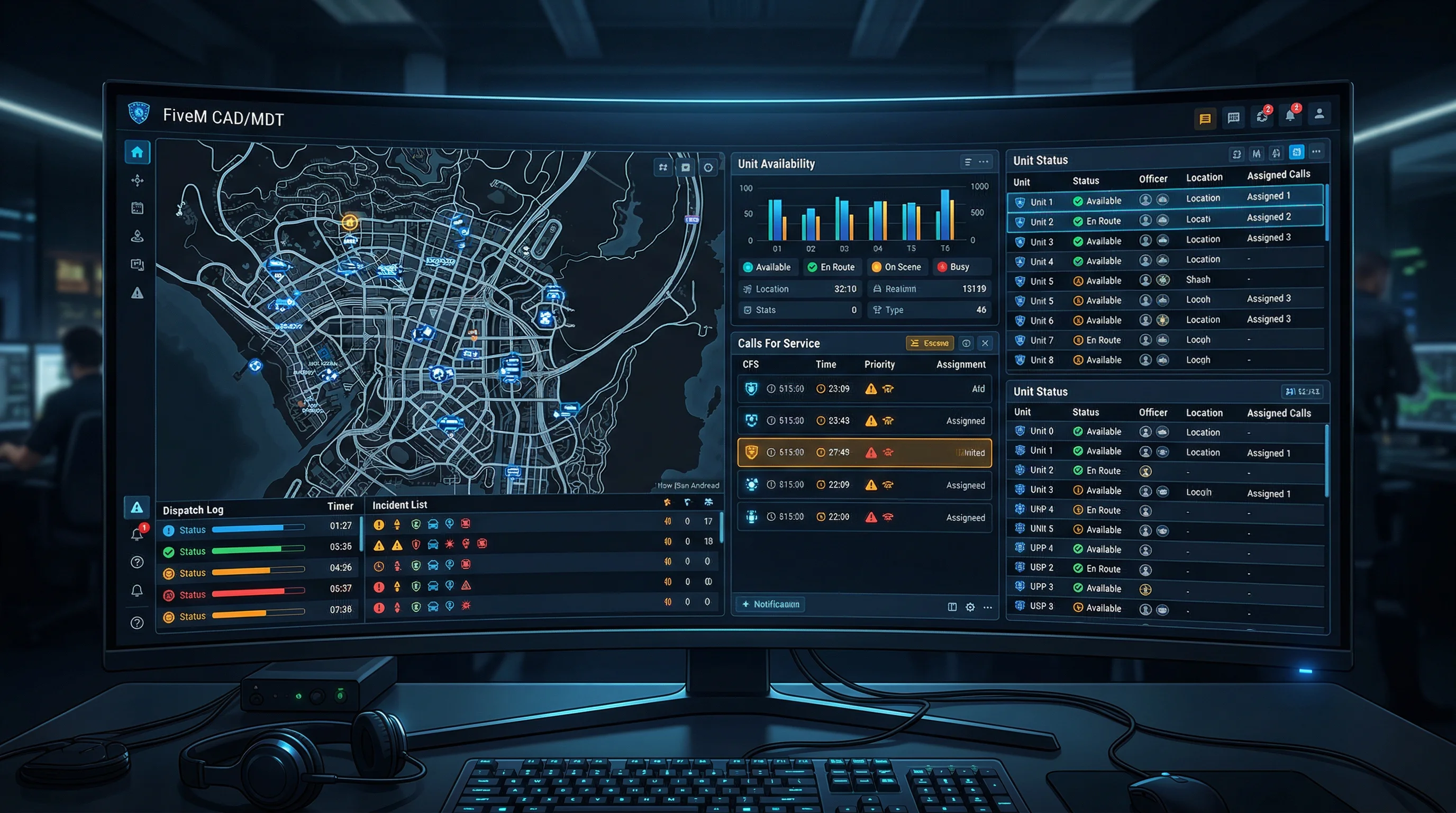
txAdmin Complete Guide 2026: Setup, Features & Best Practices
The definitive txAdmin guide for 2026. Learn how to install, configure, and master every feature — from player management and permissions to Discord integration, scheduled restarts, and the new v8.0 interface.
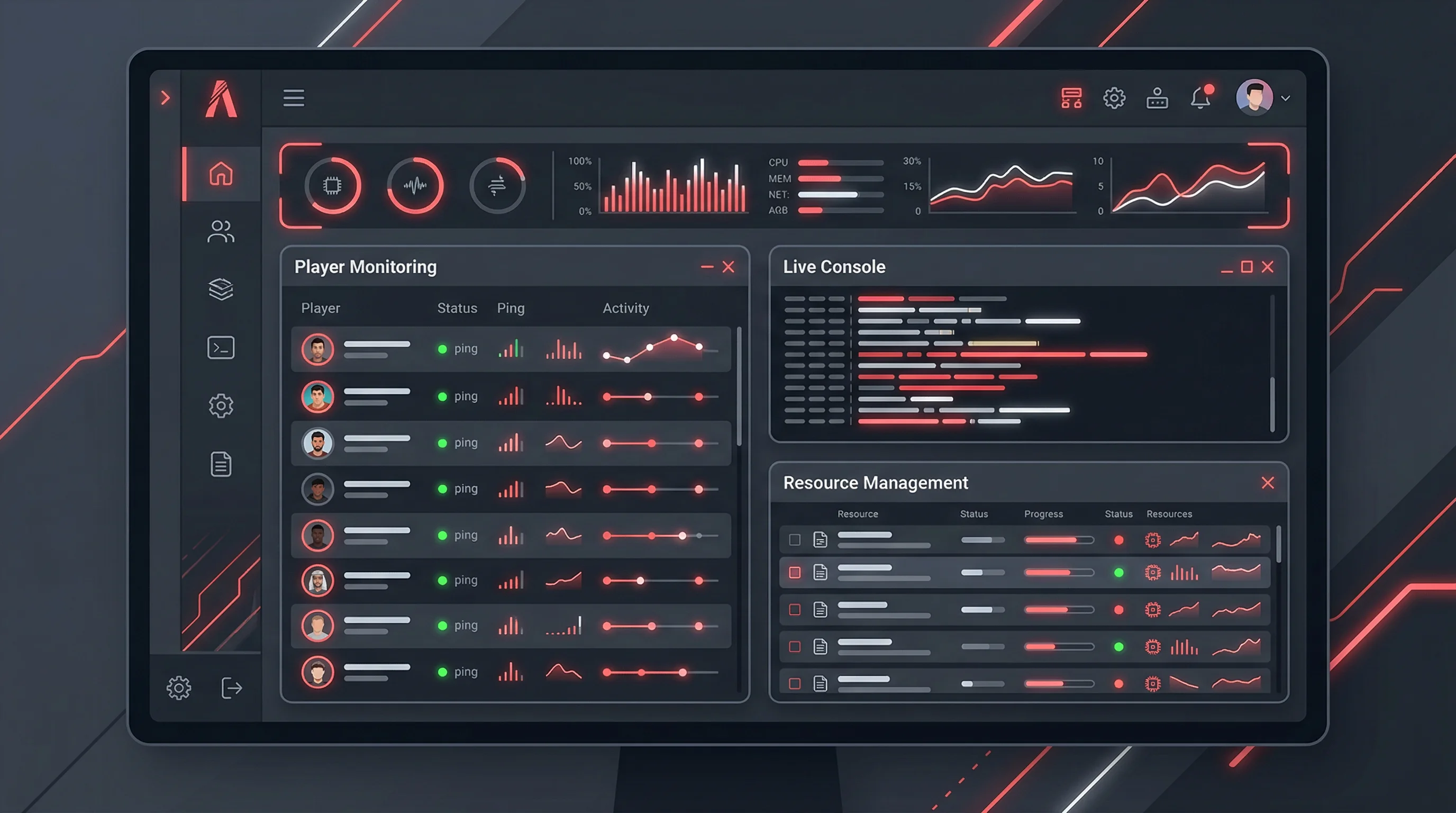
txAdmin is the de facto standard for FiveM server administration. It powers more than 29,000 active servers worldwide, costs nothing, and has been bundled directly into FXServer since build 4890 — meaning you already have it installed whether you know it or not. This guide covers every feature, including the changes introduced in the v8.0 release from March 2025.
What Is txAdmin?
txAdmin is an open-source, full-featured web-based admin panel built specifically for FiveM servers. It was created by Tabarra and is maintained by the Cfx.re team. Because it ships inside FXServer itself, there is no separate installation process and no compatibility issues to worry about.
Key facts about txAdmin:
- Used by 29,000+ FiveM servers globally
- Completely free — no subscription, no premium tier
- Built into FXServer since artifact build 4890
- Accessible from any browser on any device
- Supports QBCore, ESX, QBox, and vanilla FiveM setups
What sets txAdmin apart from alternatives is the depth of its player management system. Every player who joins your server gets a persistent profile with hardware tokens, ban history, warnings, and notes — all stored across sessions. This makes it significantly harder for banned players to evade consequences.
Installation Step-by-Step
Because txAdmin is bundled with FXServer, installation is really just a matter of running FXServer for the first time and following the setup wizard.
Step 1: Download FXServer Artifacts
Go to the official artifacts page and download the latest recommended build:
- Windows: https://runtime.fivem.net/artifacts/fivem/build_server_windows/master/
- Linux: https://runtime.fivem.net/artifacts/fivem/build_proot_linux/master/
Always use the latest recommended build (marked in green). Avoid optional/latest builds in production — they may contain regressions.
Step 2: Extract and Prepare
Extract the artifact archive to a folder, for example C:\FXServer\server on Windows or /home/fivem/server on Linux. Create a separate folder for your server data, e.g. C:\FXServer\server-data.
Step 3: First Launch
Windows: Run FXServer.exe +set txAdminPort 40120 or simply double-click the executable — the default txAdmin port is 40120.
Linux:
./run.sh +set txAdminPort 40120
Step 4: Get the PIN from the Console
When FXServer starts for the first time, txAdmin will print a one-time PIN to the server console. It looks like this:
[txAdmin] Use the PIN 1234 to configure txAdmin.
[txAdmin] Web panel: http://localhost:40120/
Open http://YOUR_SERVER_IP:40120/ in a browser. Enter the PIN to claim ownership of the panel. This PIN is valid for 5 minutes and regenerates on each restart until txAdmin is configured.
Step 5: Web Setup Wizard
The setup wizard walks you through:
- Admin account creation — set your display name and password
- Deployment type — choose between a recipe-based deployment or pointing txAdmin at an existing
server.cfg - Server data folder — set the path where your resources and config live
- Server name — displayed in the txAdmin UI and Discord embeds
Step 6: Recipe Selection
Recipes let you deploy a fully configured server automatically. txAdmin will download, install, and configure everything. Choose the recipe that matches your planned framework:
| Recipe | Framework | Description | |--------|-----------|-------------| | QBCore | QBCore | Full QB server with core resources | | ESX | ESX Legacy | ESX with ox_lib and ox_inventory | | QBox | QBox | Modern fork of QBCore | | Vanilla FiveM | None | Bare FXServer with no framework |
After selecting a recipe, txAdmin downloads all required resources and generates a working server.cfg. The entire process takes 2–10 minutes depending on your connection speed.
Dashboard Overview
The txAdmin dashboard is the first thing you see after logging in. It gives you a real-time snapshot of your server's health.
Server Status Panel
- Status indicator — green (online), yellow (starting), red (offline/crashed)
- Uptime — time since last restart
- Player count — current vs. max slots
- CPU usage — FXServer process CPU percentage
- RAM usage — current memory consumption in MB
- Thread hitch warnings — count of thread hitch events since last restart
Live Console
The embedded console lets you run any server command directly from the browser — no SSH required. Commands like restart resourcename, refresh, stop resourcename, and native FXServer commands all work here.
Live Map
The live map shows the real-time position of every connected player on the GTA V map. You can click a player dot to open their profile, teleport to them, or take quick actions. The map updates every few seconds and is one of the most-used features for active moderation.
Server Log
txAdmin maintains a structured log of every admin action, server event, player join/leave, and crash. Logs are searchable and filterable by event type, date, and player identifier.
Player Management
Player management is where txAdmin truly excels. Every player who connects to your server has a persistent profile built from their hardware tokens and identifiers.
Player Profiles
A player profile contains:
- Identifiers — Steam, Discord, FiveM license, IP (if enabled)
- Hardware tokens — unique fingerprints that persist across VPNs and identifier changes
- Session history — every time they connected, with timestamps and duration
- Warn history — all warnings with reason, admin who issued, and date
- Ban history — active and expired bans
- Notes — private admin notes visible only to your team
Warn, Kick, and Ban
All moderation actions are performed from the player's profile page or from the live players list.
Warn a player:
Reason: [describe the rule violation]
Note: [internal note for your admin team]
Warnings are visible to the player in-game and stored permanently in their profile.
Kick a player:
- Instant disconnection
- Requires a reason (shown to the player)
- Not stored as a ban — player can reconnect immediately
Ban a player:
- Choose duration: permanent, or specify hours/days/weeks
- Reason is shown to the player on the ban screen
- All hardware tokens are recorded at time of ban
- Player's future connections are checked against all stored tokens
Ban Templates
For servers with consistent rule sets, txAdmin supports ban templates. These are pre-defined reason + duration combinations that let moderators issue bans in two clicks instead of typing each time.
Example templates:
| Template Name | Reason | Duration | |---------------|--------|----------| | RDM First Offense | Random Deathmatch | 3 days | | Cheating | Using unauthorized modifications | Permanent | | VDM | Vehicle Deathmatch | 7 days | | Racism/Slurs | Hate speech violating community rules | Permanent |
Whitelist Modes
txAdmin supports three whitelist modes:
Disabled — anyone can join, no whitelist check.
Admin-only approval — new players are placed in a pending state. An admin must manually approve them through the txAdmin panel before they can connect successfully.
Discord role-based — players must be a member of your Discord server and hold a specific role (configured by role ID) to be allowed in. Requires the Discord bot integration (covered below).
Admin Permissions & Roles
txAdmin has a granular permission system with 26 individual permissions organized across functional categories. You can create custom permission profiles or use the built-in presets (Owner, Admin, Moderator).
Permission Table
| Permission Node | Description |
|----------------|-------------|
| all_permissions | Full access to everything (owner only) |
| manage.admins | Add, edit, and remove admin accounts |
| manage.whitelist | Approve/reject whitelist requests |
| manage.server | Start, stop, and restart the server |
| server.cfg.editor | Edit server.cfg from the web panel |
| console.view | View the live console output |
| console.write | Type commands into the live console |
| server.resources | View and manage server resources |
| players.kick | Kick players from the server |
| players.warn | Issue warnings to players |
| players.ban | Ban players (temporary or permanent) |
| players.unban | Remove active bans |
| players.whitelist | Manage individual player whitelist status |
| players.view | View player profiles and history |
| players.notes | Add and edit private admin notes |
| players.actions | Take in-game actions on players (heal, teleport) |
| commands.custom | Execute admin-designated custom commands |
| menu.vehicle | Spawn vehicles via the in-game menu |
| menu.heal | Heal self/others via the in-game menu |
| menu.teleport | Teleport via the in-game menu |
| menu.noclip | Toggle noclip via the in-game menu |
| menu.announcement | Send server-wide announcements |
| menu.spectate | Spectate players from the in-game menu |
| diagnostics.view | View server diagnostics and performance data |
| txadmin.log | View the txAdmin action log |
| server.log.view | View the FXServer server log |
Setting Up Admin Accounts
Navigate to Settings > Admins in the txAdmin panel. Click Add Admin and fill in:
- Display name — shown in logs and in-game when admin actions are taken
- FiveM forum name OR Cfx.re identifier — used for secure login via Cfx.re OAuth
- Password — alternative login method
- Permission profile — choose a preset or a custom permission set
The recommended login method is Cfx.re OAuth, as it ties admin accounts to Cfx.re forum identities, making it much harder for unauthorized users to access admin accounts.
In-Game Menu (/tx Command)
The txAdmin in-game menu is accessible to all players with admin permissions by typing /tx in chat or pressing the configured keybind. It provides a fast interface for common admin tasks without needing to switch to the browser panel.
Player List
The player list tab shows all connected players with their server ID, name, and ping. From this tab you can:
- Open a player's profile page
- Teleport to a player's location
- Bring a player to your location
- Kick, warn, or ban directly from the list
Teleport
The teleport section lets you jump to:
- Player — teleport to any connected player's position
- Waypoint — teleport to your current map waypoint
- Coordinates — enter exact X/Y/Z coordinates manually
Vehicle Spawner
Type a vehicle model name (e.g. adder, zentorno, policeb) to spawn it at your location. The vehicle spawner respects the menu.vehicle permission — admins without this permission won't see the tab.
Heal
The heal tab lets you restore your own health and armor to full, or heal another player by selecting them from the list. Requires the menu.heal permission.
Announcements
Send a server-wide message that appears in the center of every player's screen. Useful for announcing restarts, events, or rule reminders. The announcement shows your admin name as the sender. Requires menu.announcement permission.
Spectate
Spectate mode lets you observe a player from their perspective without them knowing. The player list shows their current location and actions in real time. Requires the menu.spectate permission.
Noclip
Toggle noclip to fly freely through the map — useful for investigating griefing locations, checking builds, or reaching players in hard-to-access areas. Requires the menu.noclip permission.
Server Recipes & Custom Recipes
Recipes are YAML-based deployment scripts that automate server setup. They tell txAdmin what files to download, where to put them, and how to configure the server.
How Recipes Work
When you create a new server in txAdmin and select a recipe, txAdmin:
- Parses the YAML file
- Downloads all specified GitHub releases and repositories
- Extracts archives to the correct directories
- Runs any defined SQL queries against the configured database
- Generates a complete
server.cfgwith the correct resource start order
Popular Community Recipes
| Framework | Recipe Source | Notes | |-----------|---------------|-------| | QBCore | Official QBCore GitHub | Full server with QB-Core, ox_lib, qb-vehiclekeys | | ESX Legacy | Official ESX GitHub | ESX with ox_inventory and ox_lib | | QBox | Official QBox GitHub | Modern QBCore fork | | RedEM:RP | Community | Red Dead Redemption roleplay framework |
Creating a Custom Recipe
A custom recipe is a YAML file hosted anywhere publicly accessible (GitHub raw, CDN, etc.). Here is a minimal example:
name: My Custom Server
author: YourName
description: Custom FiveM server with hand-picked resources
requirements:
  - mysql
variables:
  - name: serverName
    label: Server Name
    type: input
    default: My FiveM Server
tasks:
  - action: download_github
    src: tabarra/txAdmin
    ref: main
    dest: /resources/[admin]/txAdmin
  - action: download_github
    src: overextended/ox_lib
    ref: main
    dest: /resources/[ox]/ox_lib
  - action: connect_database
    host: '{{dbHost}}'
    user: '{{dbUser}}'
    password: '{{dbPassword}}'
    database: '{{dbName}}'
  - action: query_database
    file: setup.sql
  - action: create_local_file
    path: server.cfg
    content: |
      sv_projectName "{{serverName}}"
      sv_maxclients 64
      ensure ox_lib
      ensure my_resource
Recipe actions include: download_github, download_file, unzip, move_path, copy_path, query_database, connect_database, create_local_file, and waste_time (for delays between steps).
Discord Integration
txAdmin's Discord integration enables role-based whitelisting, status embeds, and activity logging — all without a separate bot installation.
Setting Up the Discord Bot
- Go to the Discord Developer Portal and create a new application.
- Navigate to the Bot section and create a bot user.
- Copy the Bot Token.
- Enable the Server Members Intent and Message Content Intent under Privileged Gateway Intents.
- In txAdmin, go to Settings > Discord Bot and paste the token.
- Add the bot to your Discord server using the OAuth2 URL generated in the Developer Portal (requires
botscope withManage Roles,Read Messages,Send Messagespermissions). - Copy your Discord server ID (enable Developer Mode in Discord, right-click your server, copy ID) and paste it into txAdmin.
Role-Based Whitelist
Once the bot is connected:
- Go to Settings > Whitelist and select Discord role.
- Enter the role ID of the role players must have to join. You can require multiple roles.
- Players who try to connect without the required Discord role will receive a rejection message with instructions to join your Discord.
Status Embeds
txAdmin can post an auto-updating status embed to a Discord channel showing:
- Server online/offline status
- Current player count and max slots
- Server uptime
- A join button linking to your server's CFX page
To configure: Settings > Discord Bot > Status Embed — select the channel and click Create Embed. txAdmin will update this message every 60 seconds automatically.
Log Channel
Set a log channel in Settings > Discord Bot > Log Channel to receive notifications for:
- Player bans and unbans
- Admin logins to the txAdmin panel
- Server crashes and unexpected shutdowns
- Scheduled restart warnings
Scheduled Restarts
Automated restarts are critical for long-running FiveM servers. Memory leaks, resource degradation, and cached data all accumulate over time. Scheduled restarts flush these issues and keep your server performing well.
Configuring a Restart Schedule
Go to Settings > Scheduler. Restarts are defined using a cron-like syntax:
# Restart every day at 4:00 AM and 4:00 PM
0 4 * * *
0 16 * * *
You can also configure restart warnings — messages sent to all players at intervals before the restart:
| Warning | Time Before Restart | |---------|-------------------| | First warning | 15 minutes | | Second warning | 5 minutes | | Final warning | 1 minute |
Warning messages are customizable and support variables like {restartTime}.
v8.0: Skip-Restart When Server Is Empty
One of the most requested features, added in v8.0, is the ability to skip a scheduled restart when no players are online. This prevents unnecessary downtime during off-peak hours.
To enable:
- In Settings > Scheduler, check the Skip restart if server is empty option.
When enabled, txAdmin checks the player count immediately before a scheduled restart. If the server is empty, the restart is skipped and rescheduled for the next configured time. When the server is not empty, the normal restart flow (warnings → restart) proceeds as configured.
What's New in v8.0 (March 2025)
txAdmin v8.0 was a significant release that shipped in March 2025. Here is a summary of the major changes:
Redesigned User Interface
The entire txAdmin UI was rebuilt from scratch. The new interface is faster, more responsive, and better organized. Key layout changes:
- Collapsible sidebar navigation
- Improved dark mode with better contrast
- Responsive layout that works on mobile and tablet browsers
- New dashboard card layout for quick-glance server health
Improved Player Manager
The player manager received a major overhaul:
- Bulk actions — select multiple players to kick, warn, or note simultaneously
- Advanced filters — filter by country, play time, join date, or warning count
- Improved search — fuzzy search across names and identifiers
- Player tags — add custom color-coded tags to player profiles (e.g., "VIP", "Streamer", "Trusted")
Skip-Empty Restarts
As described in the scheduler section above, v8.0 adds native support for skipping scheduled restarts when the server is empty — no third-party scripts required.
Enhanced Security
- Improved rate limiting on the web panel login page
- CSRF token enforcement on all state-changing requests
- Audit log now captures the source IP for every admin login and action
- New anomaly detection flags accounts with suspicious login patterns
Performance Improvements
- txAdmin's own resource footprint reduced by approximately 30%
- Dashboard metrics now use server-sent events instead of polling, reducing unnecessary HTTP requests
- Player list rendering significantly faster on servers with 128+ players
Troubleshooting
| Problem | Likely Cause | Solution |
|---------|-------------|----------|
| Can't connect to panel | Wrong IP or port blocked by firewall | Verify txAdminPort (default 40120) is open in your firewall/hosting control panel |
| PIN not showing in console | txAdmin already configured from a previous run | Delete txData/ folder or run with +set txAdminFreshStart true |
| Recipes failing mid-install | GitHub rate limit or missing database credentials | Wait a few minutes and retry; double-check DB credentials in the recipe form |
| High memory usage | Memory leak in a resource or no scheduled restarts | Identify the leaking resource with resmon; add scheduled restarts |
| Players can't join after whitelist enabled | Bot missing permissions or wrong role ID | Verify bot has Server Members Intent enabled and the role ID is correct |
| Database locked error | SQLite database corruption (if not using MySQL) | Switch to MySQL/MariaDB; SQLite is not recommended for production |
| Slow dashboard / high CPU on panel | Very large player history database | Run txAdmin > Diagnostics > Database Optimize to compact the database |
Frequently Asked Questions
Is txAdmin completely free? Yes. txAdmin is open source and has no paid tier. It is maintained by Cfx.re and community contributors. The GitHub repository is at github.com/tabarra/txAdmin.
Can I run txAdmin on Linux? Yes. txAdmin works identically on Windows and Linux since it ships as part of the FXServer binary. Most production servers run on Linux for better performance and resource efficiency.
What is the default txAdmin port?
The default port is 40120. You can change it with +set txAdminPort YOURPORT in your start command. Make sure the port is accessible through your firewall.
Can multiple admins use txAdmin at the same time? Yes. txAdmin supports multiple concurrent admin sessions. Each admin account has its own login, and all actions are attributed to the correct account in the audit log.
How do I update txAdmin? Update your FXServer artifacts. txAdmin updates are included in FXServer builds. Download the latest recommended artifact, replace your FXServer binary files (not your server-data folder), and restart.
Does txAdmin support two-factor authentication? txAdmin recommends using Cfx.re OAuth for admin login, which inherits whatever security your Cfx.re account has (including any 2FA configured there). Password-based logins do not have native 2FA support.
Can I use txAdmin with a ZAP-Hosting, Pterodactyl, or other panel? Yes. Most FiveM hosting providers have txAdmin pre-configured. If you manage your own server through Pterodactyl or a similar panel, txAdmin runs inside FXServer as normal — access it through the txAdmin port rather than the game server port.
What happens to txAdmin data if I move my server to a new machine?
Copy the txData/ directory from your old server to the new one. This directory contains all player profiles, ban records, admin accounts, and configuration. It is separate from your server-data/ folder.
Final Thoughts
txAdmin is one of the most mature and well-engineered tools in the FiveM ecosystem. The v8.0 release brought meaningful improvements across the board — especially the UI overhaul and skip-empty restarts — making it an even stronger foundation for server administration in 2026.
If you are building or managing a FiveM server, understanding txAdmin deeply gives you a significant advantage. Combined with the right scripts and mods from the VertexMods shop, you have everything you need to run a professional, well-moderated server.
For more on FiveM administration, see our guide to FiveM admin commands and menus.