How to Change Your Field of View (FOV) in FiveM
85-90 FOV
Recommended competitive range
Best balance between peripheral vision and distortion in most FiveM first-person setups.
3 quick checks
Test routine
Run, drive, and ADS in one session before locking in your final value.
80 FOV
Rollback point
If mirrors, weapon hands, or dashboards look stretched, step back to 80 and retest.
A complete guide to adjusting FOV in FiveM: the console command, permanent config setup, per-playstyle recommendations by monitor size, vehicle and ADS camera tweaks, and a full troubleshooting section for every common failure mode.
Changing the Field of View (FOV) in FiveM is one of the fastest ways to improve your first-person gameplay. The default GTA V camera is notoriously tight, locking you into a narrow tunnel-vision perspective that limits situational awareness during gunfights, high-speed driving, and complex roleplay scenarios.
This guide covers the console command, permanent config setup, what the different FOV values actually look and feel like, how to handle vehicle and ADS cameras, and a full troubleshooting section for every failure mode you are likely to hit.
For a complete overview of client-side optimization, see our guide on best FiveM settings for high FPS.
Step 1: Switch to the Canary Update Channel
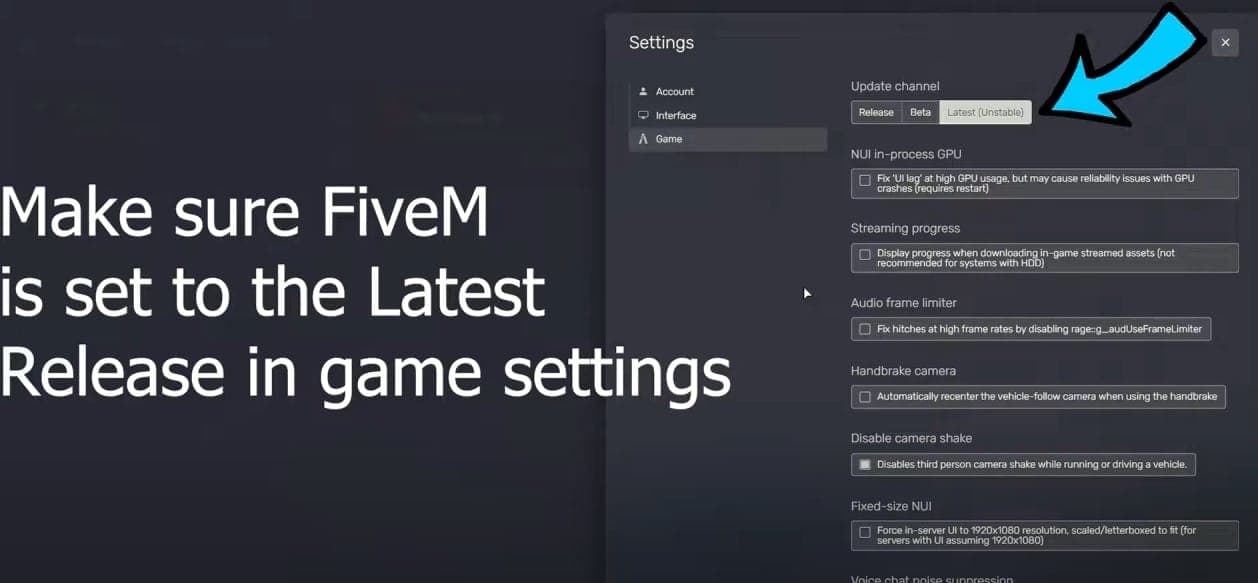
The FOV command relies on features available in the Canary (Latest) branch of FiveM. On the Release branch, the command is either silently ignored or the settings slider appears grayed out.
How to switch:
- Open FiveM and go to Settings (gear icon, top-right corner).
- Find the Update Channel option.
- Change it from "Release" to "Latest" (Canary).
- Restart the client to download the update.
If you are already on Canary, skip this step. You can verify your branch in the FiveM settings panel.
Step 2: Open the Developer Console
Once loaded into a server or sitting at the main menu:
- Press
F8to open the FiveM Developer Console. - A dark overlay appears at the top of your screen with a text input at the bottom.
Step 3: Enter the FOV Command
Type the following command into the console input line:
profile_fpsFieldOfView 90
Replace 90 with your target value and press Enter. The change applies immediately — you do not need to restart the game.
Quick reference values:
- 60–70: Default GTA V first-person range. Tight, restrictive, prone to motion sickness for long sessions.
- 80–85: Conservative but clear improvement. Dashboards and weapon models stay proportional.
- 85–90: The recommended sweet spot for most players. Peripheral vision opens noticeably without distorting centers or interiors.
- 95–100: High-performance range. Better for racing and ultrawide monitors; some stretching in tight vehicle interiors.
- 100+: Fishbowl territory. Maximum peripheral awareness but visible geometric distortion at screen edges.
What FOV Actually Looks and Feels Like: 70°, 90°, and 110°
Numbers alone do not tell the full story. Here is what each major setting looks like in practice:
70° FOV (near-default)
Standing on a sidewalk in Los Santos, you see roughly the width of a two-lane road ahead of you. Your character's gun fills a large portion of the lower screen. During a chase scene, the environment rushes toward you in a narrow column — disorienting if you have played modern FPS games, which default to 90+. In a vehicle, the A-pillars of most cars take up significant screen real estate and side traffic is largely invisible until it appears in your direct forward view.
90° FOV (recommended range)
The same sidewalk now reveals both kerbs, the full bonnet of a parked car to your left, and the beginning of a side alley to your right — all without moving the camera. The gun model is smaller relative to the screen but still clearly readable. Vehicle interiors feel appropriately proportioned: dashboards are visible, side mirrors are usable, and the road ahead feels natural rather than zoomed in. This is the setting that most competitive FPS games target, and your muscle memory will transfer cleanly.
110° FOV (aggressive/ultrawide)
You can see nearly 60% of a full street width in a single frame. The gun barrel curves noticeably at the edges of screen due to perspective projection — a side effect of pushing FOV beyond the point your monitor geometry compensates for naturally. Buildings look slightly curved at the periphery. Driving becomes easier for tracking side traffic, but vehicle interiors warp: dashboards stretch, steering wheels look misshapen, and passenger-side detail clips. Most players find this setting only usable for racing or open-world traversal, not for close-quarters combat where weapon model distortion is distracting.
Recommended FOV by Monitor Size and Playstyle
Frequently Asked Questions
What FOV should I use in FiveM?
For most players, 85–90 is the best starting point. It widens your peripheral vision noticeably compared to the default 70 without warping weapon models, dashboards, or door frames. Go higher (90–100) if you mainly race or play on an ultrawide; stay at 80–85 for heavy roleplay where interior readability matters more than edge-awareness.
What is the FiveM FOV command?
Open the F8 console and type: profile_fpsFieldOfView 90 (replace 90 with your value). To make it permanent, add seta profile_fpsFieldOfView "90" to your fivem.cfg or citizenfx.ini file.
Why does my FiveM FOV reset after restarting the client?
The most common causes are: editing the wrong config file, switching update channels (Release vs Canary), or having duplicate entries in your config. Save the setting to fivem.cfg or citizenfx.ini in %appdata%\CitizenFX or %localappdata%\FiveM\FiveM.app, restart the client completely, and verify there is only one profile_fpsFieldOfView line.
Why is my FOV slider grayed out or the command not working?
The profile_fpsFieldOfView command requires the Canary (Latest) update channel. On the Release branch, the command is accepted but has no effect on some builds, or the in-game settings slider appears inactive. Switch your update channel to Canary in FiveM settings, restart the client, and try the command again.