Introduction to LUA-Scripting for FiveM
Description
This guide aims to introduce readers to LUA scripting within the context of FiveM, a popular modification framework for GTA V. We will cover the essentials of LUA, how it integrates with FiveM, and the steps required to set up a development environment using Visual Studio Code (VSCode). By the end of this post, readers will have a working development environment and a basic understanding of LUA scripting for FiveM.
Is LUA hard to learn? Well, every beginning is difficult – but LUA is a very easy coding language.
What is LUA Scripting?
LUA is a lightweight, high-level programming language designed for embedded use in applications. It is known for its simplicity, ease of integration, and fast execution. Originally developed in 1993, LUA has been widely adopted in various domains, particularly in game development, due to its flexibility and minimalistic syntax.
- Lightweight: The entire LUA interpreter is small, making it ideal for embedding in other programs.
- Easy to Learn: LUA’s syntax is straightforward and easy to grasp, which makes it a great choice for beginners.
- Flexible and Dynamic: LUA supports dynamic typing and flexible object-oriented programming, which allows for rapid prototyping and modifications.
- Extensible: LUA can easily be extended with custom libraries and functionalities, making it highly adaptable to different needs.
Why Use LUA in FiveM?
In the context of FiveM, LUA is the primary scripting language used to interact with the game engine. It allows developers to write scripts that can:
- Control game logic (e.g., spawning cars, modifying player stats).
- Handle events and player interactions.
- Create custom game modes, missions, and activities.
- Interface with external data sources and APIs. (even ChatGPT)
The FiveM code provides a rich set of native functions and event handlers that can be accessed via LUA scripts, making it possible to extend and customize almost every aspect of the game.
Introduction to FiveM and its LUA Scripting Capabilities
FiveM is a multiplayer modification framework for GTA V, enabling players to connect to dedicated servers with customized game modes and content. Unlike the standard multiplayer mode of GTA V, FiveM allows server owners to use mods, scripts, and custom assets to create unique experiences for players.
FiveM’s LUA Scripting Capabilities Include:
- Server-Side Scripting: Scripts that run on the server, handling tasks such as player authentication, data storage, and world events. -> server.lua
- Client-Side Scripting: Scripts that run on individual player clients, allowing for custom UI elements, client-side event handling, and interaction with server-side scripts. -> client.lua
- Shared Scripting: Scripts that can be executed on both the client and server, enabling synchronized actions and shared functionalities. -> shared.lua
With FiveM, developers can create custom game modes such as roleplay servers, racing competitions, and mini-games. LUA serves as the backbone for these scripts, providing the logic and control needed to interact with the game world and players.
Setting Up a Development Environment
To start scripting with LUA in FiveM, you need to set up a suitable development environment. This section will guide you through the process of installing Visual Studio Code, configuring it for LUA development, and setting up a basic FiveM server environment to test your scripts.
Step 1: Install Visual Studio Code (VSCode)
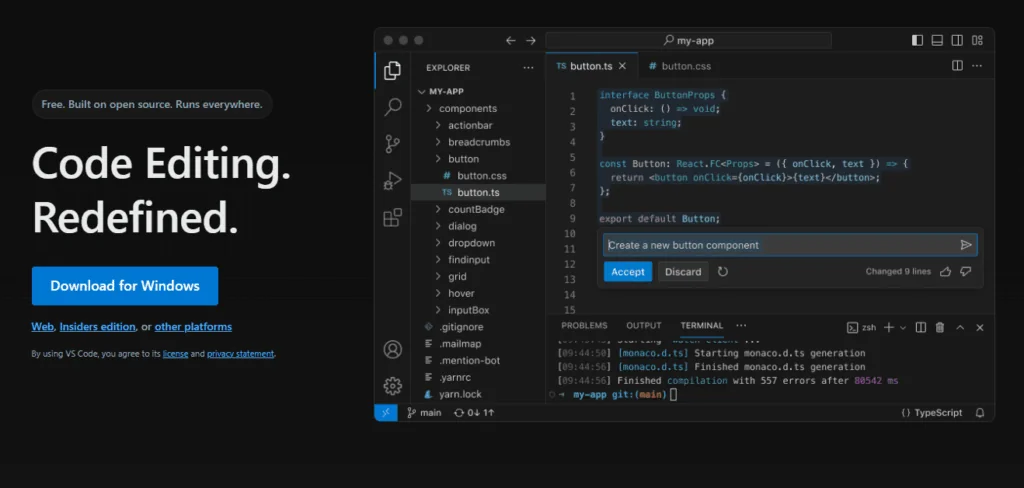
Visual Studio Code is a free, open-source code editor developed by Microsoft. It’s lightweight, feature-rich, and supports various programming languages, including LUA.
- Download VSCode:
- Visit the Visual Studio Code website.
- Download the installer for your operating system (Windows, macOS, Linux).
- Run the installer and follow the installation instructions.
- Install LUA Extensions:
- Open VSCode.Click on the Extensions icon on the left sidebar or press
Ctrl+Shift+X.Search for “Lua” and install an extension such as “Lua Language Server” or “Lua Plus.” These extensions provide syntax highlighting, code completion, and other useful features.
- Open VSCode.Click on the Extensions icon on the left sidebar or press
# Sample command to install Lua extension from the VSCode marketplace
ext install sumneko.lua
Step 2: Setting Up a FiveM Server Environment
To write and test LUA scripts, you need a local FiveM server setup. Follow these steps to create your development environment:
- Download the FiveM Server Files:
- Visit the FiveM official website.
- Download the latest FiveM server files. -> Windows
- Extract and Configure the Server:
- Create a new folder on your computer (e.g.,
C:\FiveMServer). - Extract the FiveM server files into this directory.
- Inside the server folder, create a new subfolder named
resources. This is where your custom scripts and resources will reside.
- Create a new folder on your computer (e.g.,
- Create a Basic Server Configuration:
- In the root of your FiveM server folder, you will find a server.cfg
- This file is the configuration file for most settings:
# Basic FiveM server configuration file

# Server name and description
sv_hostname "My FiveM Development Server"
sv_description "A development server for testing LUA scripts"

# Maximum number of players
sv_maxclients 32

# Resource directories
ensure mapmanager
ensure chat
ensure spawnmanager
ensure sessionmanager
ensure fivem
ensure hardcap
ensure rconlog

# Add custom resources here
ensure my_script
Then, lastly, Start the Server.
Step 3: Create a Simple LUA Script for FiveM
- Create a Script Directory:
- Inside the
resourcesfolder, create a new directory for your script, e.g.,my_script.
- Inside the
- Create the Script Files:
- Inside
my_script, create two files:__resource.lua(or better: Start by setting up a fxmanifest.lua) andmain.lua. - The
__resource.luafile (or fxmanifest) is a metadata file that tells FiveM about the resources in this directory. Add the following lines to__resource.lua:
- Inside
-- __resource.lua
-- Define the server script to run
server_script 'main.lua'
In main.lua, write a simple LUA script that outputs a message to the server console:
-- main.lua
print("Hello, FiveM! This is my first LUA script.")
Test Your Script:
- Save the files and restart your FiveM server.
- Check the server console for the message “Hello, FiveM! This is my first LUA script.” This confirms that your script is loaded and running successfully.
Detailed Breakdown of Key Concepts in LUA
1. LUA Syntax Basics
LUA’s syntax is designed to be simple and clean. Understanding the basics is essential for effective scripting in FiveM.
Comments:
- Single-line comments start with
--. - Multi-line comments are enclosed within
--[[ ]].
-- This is a single-line comment

--[[
This is a
multi-line comment
]]
Variables and Data Types:
- Variables do not need to be declared with a type. LUA automatically assigns types based on the value.
local playerName = "John"  -- string
local playerScore = 100    -- number
local isOnline = true      -- boolean
Basic Data Types:
- Nil: Represents the absence of a value.
- Number: Represents numerical values.
- String: A sequence of characters.
- Boolean:
trueorfalse. - Table: A collection of values.
Example of Variable Declaration and Data Types in LUA:
local playerHealth = 100  -- Number
local playerName = "Alex" -- String
local isAlive = true      -- Boolean
local playerInfo = {      -- Table
    name = "Alex",
    health = 100,
    inventory = {}
}
2. Basic LUA Commands in FiveM Context
Print Function: The print() function outputs messages to the console. It’s useful for debugging and displaying information.
<code>print("This message will be printed to the server console")<br></code>
Server Event Handlers: FiveM uses event-driven programming. You can define functions that run in response to specific events, such as a player joining the server.
-- Example of an event handler in FiveM LUA
AddEventHandler('playerConnecting', function(playerName, setKickReason)
    print(playerName .. " is connecting to the server")
end)
3. Setting Up LUA Coding Standards and Best Practices
- Use Meaningful Variable Names:
- Instead of naming a variable
x, useplayerHealthorcurrentScore. This improves readability and maintainability:
- Instead of naming a variable
local playerHealth = 100 -- Better naming for clarity
- Consistent Indentation:
- Proper indentation improves code readability. It’s a good practice to use 4 spaces or a tab for each level of indentation
if playerHealth > 0 then
    print("Player is alive")
else
    print("Player is dead")
end
- Comment Your Code:
- Use comments to explain complex logic or important sections of code
-- Check if the player is alive
if playerHealth > 0 then
    print("Player is alive")
end
4. Error Handling and Debugging Techniques
Using pcall for Error Handling:
pcallstands for “protected call.” It executes a function in protected mode and catches any errors.
local success, err = pcall(function()
    -- Some code that might throw an error
    print("Executing risky code")
    error("An error occurred!")
end)

if not success then
    print("Error caught: " .. err)
end
Debugging Tips:
- Use
print()statements to check the values of variables at different stages. - Keep an eye on the server console for error messages and warnings.
- Break down complex functions into smaller parts to isolate and test specific functionality.
5. Practical Example: Creating a Simple Chat Command
Let’s create a simple chat command that players can use to greet each other. This example will illustrate how to handle player input and respond with a custom message.
- Modifying the Script to Add a Chat Command:
- Edit the
main.luafile to include the following code:
- Edit the
-- Register a chat command /greet
RegisterCommand('greet', function(source, args, rawCommand)
    local playerName = GetPlayerName(source)
    if playerName then
        print(playerName .. " used the greet command.")
        TriggerClientEvent('chat:addMessage', source, {
            args = { "Server", "Hello " .. playerName .. ", welcome to the server!" }
        })
    else
        print("Command used by unknown player.")
    end
end, false)
- This script registers a new command
/greet. When a player types this command in the chat, the server responds with a greeting message. - Testing the Chat Command:
- Restart your FiveM server.
- Connect to the server using the FiveM client.
- Open the in-game chat and type
/greet. - You should see a message like “Hello [Your Name], welcome to the server!” displayed in the chat.
6. Organizing Your Development Environment for Larger Projects
As your scripts become more complex, organizing your project files becomes critical. Here are some tips for managing your FiveM LUA scripts effectively:
Directory Structure: Keep related scripts in separate folders within the resources directory. For example, create separate folders for player-related scripts, vehicle scripts, and UI scripts:
/resources
├── my_script
│   ├── __resource.lua
│   ├── main.lua
│   └── commands.lua
├── player_management
│   ├── __resource.lua
│   ├── player_health.lua
│   └── player_inventory.lua
└── vehicle_management
    ├── __resource.lua
    ├── vehicle_spawn.lua
    └── vehicle_control.lua
Modular Scripting: Break your scripts into smaller modules that handle specific tasks. This makes it easier to maintain and update individual components without affecting the entire script.
Use a Version Control System: Consider using Git to track changes to your scripts. This allows you to roll back to previous versions if something breaks and collaborate with other developers more effectively.
Documentation: Document your code thoroughly. Create a README file in each project directory explaining what each script does, how to use it, and any dependencies it may have.

Experiencing Errors?
Read our FiveM guide about error fixing
Advanced Topics and Next Steps
Now that you have set up a basic development environment and written your first LUA script, you can explore more advanced topics in subsequent blog posts. These will include:
- Basic LUA Syntax and Commands: Learn the essential syntax, data types, and commands in LUA.
- Creating and Using Functions: Understand how to define and use functions in LUA to modularize and reuse code.
- Conditional Statements and Looping Structures: Learn how to use if-else statements and loops to control the flow of your scripts.
- Working with Tables: Discover how to use tables to manage complex data structures.
- Error Handling and Debugging: Explore advanced techniques for catching and handling errors.
- Using External Libraries and Modules: Learn how to integrate external libraries into your LUA scripts.
- File I/O Operations: Understand how to read from and write to files.
- Creating User Interfaces with NUI: Learn to create interactive UI elements using NUI (Native User Interface).
Conclusion
Setting up a development environment for FiveM LUA scripting using VSCode is the first step towards creating rich, customized gameplay experiences. With this foundational setup, you can begin writing scripts to enhance your FiveM server. The example scripts and exercises provided here are just the beginning. As you gain more experience with LUA and FiveM, you’ll be able to create more complex and engaging scripts, pushing the boundaries of what’s possible in GTA V.
Practice Exercises
- Modify the Greeting Command: Update the
/greetcommand to accept an additional parameter. If a name is provided, greet that name; otherwise, greet the player who used the command. - Create a New Command: Write a new command
/shoutthat broadcasts a message to all players on the server. - Error Handling Practice: Introduce error handling to check if a command is used without the required parameters and provide feedback to the player.