360 Gap Cam – Free Download
Free
360 Gap Cam – Free Download
Description
360 Gap Cam – Free FiveM Prop Download
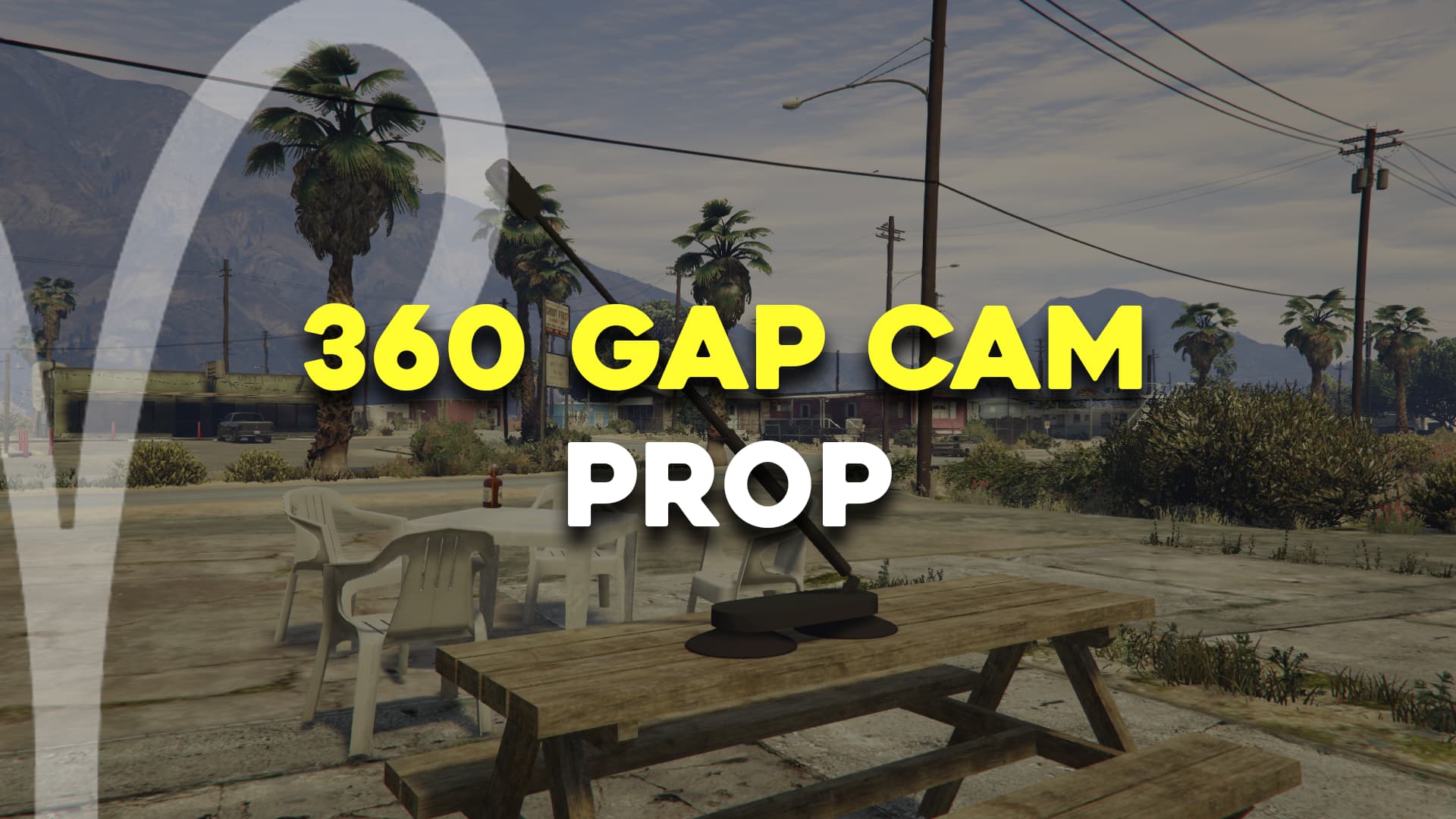
Looking to add authentic camera equipment props to your FiveM server for film sets, security installations, or creative builds? The 360 Gap Cam is a high-quality static prop that brings professional camera realism to your mapping projects. This detailed prop works perfectly for building movie production environments, surveillance setups, studio MLOs, or any scene where you need realistic camera equipment as set dressing.
Unlike functional camera systems that stream or record, this is a purely decorative asset—a static map object designed to enhance visual storytelling and environmental detail. Think of it as furniture for your film industry roleplay, photography studios, or behind-the-scenes areas where professional camera equipment belongs.
What’s Included
This free download includes the 360 Gap Cam prop model ready to spawn into your FiveM server. The prop features detailed textures, realistic proportions matching real 360-degree camera rigs, and optimized geometry for minimal performance impact. You’ll receive the YTD texture files, YDR model files, and any associated collision data needed to place the prop in your world.
Understanding Static Props
It’s important to understand what “static prop” means before downloading. This camera model is completely static—it will not move, rotate, or react to physics. Players and vehicles can pass through it as if it’s not solid (unless you configure custom collision). It doesn’t function as a real camera, doesn’t record footage, and doesn’t have any interactive features. It exists purely for visual enhancement and scene decoration.
This is actually an advantage for many use cases. Static props have zero performance overhead since they don’t require physics calculations, collision detection, or script execution. They’re perfect for background detail, set dressing, and creating authentic environments without impacting server performance.
Key Features & Details
- Static Map Object – No movement, no physics, no collision reactions; purely decorative placement
- High-Quality Model – Detailed textures and geometry replicating professional 360-degree camera equipment
- Optimized Performance – Minimal polygon count and texture sizes for efficient rendering
- Universal Compatibility – Works on all FiveM servers regardless of framework (ESX, QBCore, QBOX, Standalone)
- Spawning Required – Must be placed using map editors (CodeWalker, Menyoo) or custom spawning scripts
- No Dependencies – Simple prop asset with no script requirements
- Free to Use – No cost, suitable for commercial and non-commercial servers
- Multiple Placement – Spawn unlimited instances across your map for studios, sets, or installations
Perfect For
- Film studio MLOs and production facility interiors
- Photography business roleplay locations
- Security camera monitoring room props
- News station sets and broadcast environments
- Movie theater projection rooms
- Content creator offices and recording studios
- Behind-the-scenes areas for entertainment venues
- Technology company offices showcasing camera products
- Museum exhibits about filmmaking technology
- Creative builds requiring professional camera equipment
Framework Compatibility
Because this is a simple prop asset (not a script), it doesn’t depend on any specific framework:
- ✅ ESX – Compatible (use any prop spawning method)
- ✅ QBCore – Compatible (use any prop spawning method)
- ✅ QBOX – Compatible (use any prop spawning method)
- ✅ Standalone – Compatible (framework-independent prop)
- ✅ Custom Frameworks – Works with any FiveM setup
How to Spawn Props (Installation Methods)
Since the 360 Gap Cam is a static prop, you need a method to place it in your game world. Here are the most common approaches:
Method 1: Map Editor (CodeWalker)
- Download and install CodeWalker for GTA V modding
- Load your FiveM server’s map files in CodeWalker
- Import the 360 Gap Cam prop into your project
- Place the camera at desired coordinates in your MLO or exterior location
- Set rotation and height to position it naturally
- Export the updated map file (YMap format)
- Add the YMap to your FiveM server resource
- Load the resource in server.cfg
Method 2: In-Game Object Spawner (Menyoo, etc.)
- Download the 360 Gap Cam prop files
- Install an object spawner menu (Menyoo, vMenu with object spawning)
- Load into your server in single-player or admin mode
- Open the object spawner menu
- Search for “360 Gap Cam” or locate it in prop categories
- Spawn the prop at your current location
- Use position/rotation tools to place it precisely
- Save the coordinates for permanent placement or use object persistence scripts
Method 3: Custom Script Spawning
- Create a simple prop spawning resource
- Use
CreateObject()native with the 360 Gap Cam model hash - Set coordinates, rotation, and freeze position to prevent movement
- Add the script to your server resources
- Ensure the script in server.cfg
Example script snippet:
local camProp = CreateObject(`prop_360gapcam`, x, y, z, false, false, false)
SetEntityRotation(camProp, rotX, rotY, rotZ, 2, true)
FreezeEntityPosition(camProp, true)
Prop Placement Tips
- Height Matters – 360 cameras are typically mounted on tripods or overhead rigs; place at realistic heights (1-2 meters for tripods, 3-5 meters for overhead)
- Orientation – Rotate the prop to face the center of action or subject area
- Lighting – Position near studio lights or in well-lit areas to mimic professional setups
- Context Clues – Pair with other props like cables, monitors, control panels for authenticity
- Multiple Angles – Use several cameras around a set to create realistic multi-camera production environments
- Avoid Clipping – Check for intersections with walls, furniture, or other objects
Common Issues & Solutions
Issue: Prop doesn’t appear after spawning
Solution: Verify the prop files are correctly installed in your server’s resource. Check that the model hash or prop name matches exactly. Ensure the resource is started in server.cfg. Try restarting the server if hot-reloading isn’t working.
Issue: Camera prop is too large or too small
Solution: Some map editors allow scaling adjustments. However, this prop is modeled to real-world proportions. If it seems wrong, verify you’re not confusing it with other camera types (handheld, DSLR, etc.). 360 rigs are typically larger than standard cameras.
Issue: Players can walk through the camera
Solution: This is expected behavior for static props without collision. To add collision, you’ll need to use a script that enables collision for the object or create a custom collision mesh in your map editor. For decorative purposes, no collision is usually fine.
Issue: Prop disappears when I move away
Solution: GTA V culls distant objects to save performance. If placed via script, increase the draw distance or use SetEntityLodDist() to extend visibility range. If placed in a YMap, ensure the LOD settings are configured properly in CodeWalker.
FAQ
Q: Does this camera actually record or function?
A: No, the 360 Gap Cam is purely a static visual prop. It doesn’t have any functional camera features, recording capabilities, or interactive elements. It’s designed for decoration and environmental storytelling.
Q: Can I use this on any framework (ESX, QBCore, etc.)?
A: Yes! Since it’s just a prop model, it’s completely framework-independent. You can use it on ESX, QBCore, QBOX, Standalone, or any custom framework—it doesn’t require any framework integration.
Q: How do I rotate the camera to face a specific direction?
A: Use your map editor’s rotation tools (CodeWalker has precise rotation controls), or in scripts, use SetEntityRotation() with the desired pitch, roll, and yaw angles. Most object spawners also have rotation controls.
Q: Will this impact my server performance?
A: Minimal impact. Static props are very lightweight since they don’t require physics processing. The 360 Gap Cam is optimized with efficient geometry and textures, so you can place multiple instances without noticeable performance loss.
Q: Can I edit the textures or model?
A: Yes, if you have 3D modeling and texture editing skills. You can import the model into tools like Blender or 3ds Max, modify textures in Photoshop, and re-export. Just be cautious about file formats and ensure compatibility with FiveM.
Q: Is this compatible with custom MLO interiors?
A: Absolutely. You can place the 360 Gap Cam inside custom MLO interiors using CodeWalker or by spawning it via script at coordinates inside the MLO. It works seamlessly with any interior mapping.
Q: Do I need special permissions to use this on my server?
A: Check the download source for licensing terms. Most free FiveM props are available for both non-commercial and commercial server use, but always verify the creator’s terms to be safe.
Q: Can I make the camera solid so players bump into it?
A: You can enable collision through scripting using SetEntityCollision() or by adding a collision mesh in your map editor. However, for decorative set pieces, collision is often left disabled to prevent awkward physics interactions.
Q: Where can I find the model hash or prop name?
A: The model hash should be included in the download documentation. You can also extract it from the YDR file name or use tools like CodeWalker to identify the hash when browsing prop lists.
Q: Can I include this in my custom MLO release?
A: This depends on the original creator’s license. Some free props allow redistribution in custom maps, while others require separate downloads. Always check licensing and credit the original creator appropriately.
Download
Ready to enhance your film studios, photography locations, and creative builds with professional camera equipment? Download the 360 Gap Cam prop below and start placing it in your FiveM world today.
Download 360 Gap Cam Prop Here – Available on Tebex
Related Resources
- How To Install Custom Cars (FiveM) – Learn resource installation basics
- Free FiveM MLOs – Download free interior maps to furnish with props
- Free FiveM Mods & Scripts – Explore more free resources