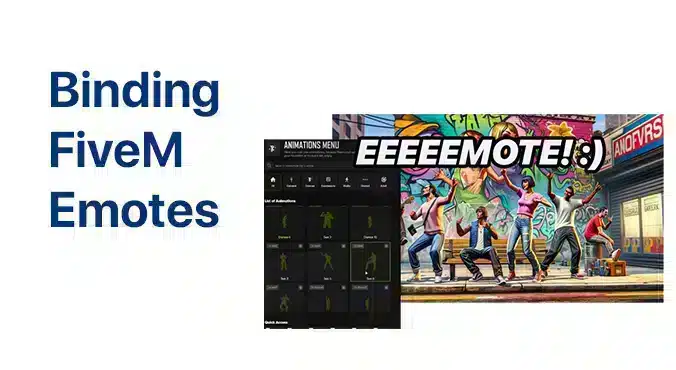
How to Bind Emotes in FiveM
How to Bind Emotes on FiveM
Binding FiveM Emotes to Your Keyboard
Introduction
FiveM has taken GTA V into a new dimension by offering endless role‑playing possibilities. One of the most enjoyable features for players is the ability to perform emotes—small animations that help convey character emotions, reactions, or actions in real time. While the platform’s emote system is powerful out of the box, you’ll want to personalize it so you can trigger your favorite moves with a single key press. This guide walks you through the entire process of binding emotes to your keyboard in FiveM, showing step‑by‑step instructions and offering useful tips for an optimal experience.
Step 1 – Open the Emote Menu
The first thing you need to do is bring up the emote menu. The key that opens the menu is server‑specific; it could be “TAB”, “F8”, or another custom key set by the server administrators. Once you’ve opened the menu, browse through the available animations. Let’s say you want to bind the “whistle” emote. Find it in the list and note down its exact command name; most emotes are prefixed with “e ”. In this case, the command will be `e whistle`.
Step 2 – Bind Your First Emote
Number 8 keeps you close to the console. Press `F8` to access the FiveM client command line. Type the following command, replacing the placeholder key with your preferred key:
“`
/bind keyboard numpad0 e whistle
“`
– keyboard – specifies the category of inputs.
– numpad0 – this is the key you’re assigning to the emote. You can use any key, but avoid one that might interfere with core gameplay.
– e whistle – the exact emote command, without the leading slash.
After typing the line, hit `Enter` to confirm the binding. Then press `F8` again to close the command line. Test it out: press the `Numpad0` key while in character and you should hear the whistle gesture.
Step 3 – Stack Multiple Emotes
If you want to trigger a chain of emotes by pressing a single key, you can stack them. The syntax requires separating emote commands with a semicolon. For instance:
“`
/bind keyboard numpad1 e scared
“`
Now `Numpad1` will play the “scared” animation. To add a second short emote to the same key, repeat the command with a semicolon:
“`
/bind keyboard numpad1 e scared; e me
“`
Here, pressing `Numpad1` will flash “scared” followed almost instantly by “pee in pants” (often referenced as `e me`). This stacking technique can be useful for creating quick, expressive moments during your role‑play interactions.
Step 4 – Adjust or Remove Bindings
Sometimes you’ll need to swap out an emote or simply free up a key. To do that, re‑open the FiveM console with `F8`, then type:
“`
/unbind keyboard numpad1
“`
Replace `numpad1` with any key you wish to clear. Press `Enter`. Your binding list will be updated immediately, and the key will no longer trigger any emotes.
Bonus Tip: View Your Current Bindings
To keep track of all your keybindings, open the console and type `bind`. The console will list every key you’ve configured, showing the action associated with each. Move the mouse wheel or use arrow keys to scroll through the list, making it easy to review or modify.
Additional Tips for a Seamless Experience
– Keep it Simple – Avoid assigning every single emote to a single key. Choose the most frequently used ones to maintain a clean keymap.
– Leave Space for Core Controls – Many servers rely on the number pad for vehicle controls. If you have to press `Numpad0` for emotes, make sure it doesn’t conflict with autopilot or other essential functions.
– Experiment – Try different key bindings and sequence setups to find what feels natural for your role‑play style. Some communities find “scared” and “whistle” effective for dramatic interactions.
– Take Advantage of Custom Scripts – Server‑side scripts sometimes come with ready‑made keybinding configurations. If you’re on a highly customized server, ask the admin for recommended layouts.
Conclusion
Binding FiveM emotes to your keyboard not only speeds up your interaction time but also adds a layer of immersion to every session. The steps above cover everything from opening the emote menu, creating simple or stacked bindings, to adjusting and cleaning up your key setup. Keep your bindings organized, choose the right emotes for your role‑playing style, and enjoy a richer gameplay experience. By mastering these techniques, you’ll make every in‑game moment more expressive and responsive—exactly what the community loves about FiveM.
Stay in the Loop
Get the latest FiveM tutorials, mod releases, and exclusive updates delivered to your inbox.
No spam. Unsubscribe anytime.