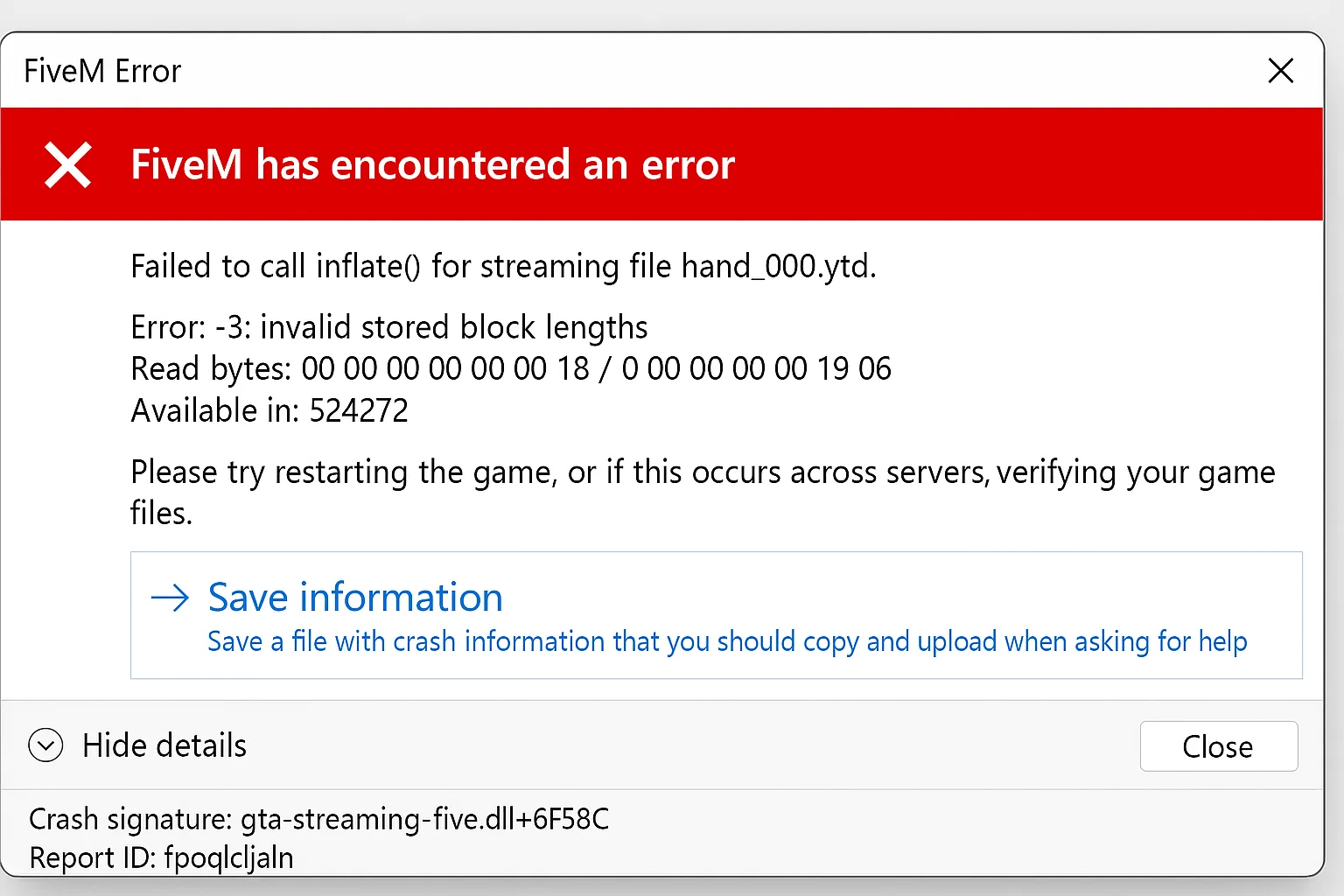
Troubleshooting: FXServer is not responding! (How to fix)
Introduction to When your FXServer shows “not responding”
When your FXServer shows “not responding” errors, you’re typically dealing with one of five core issues. This guide provides systematic troubleshooting steps for FiveM server administrators experiencing connectivity failures between txAdmin and FXServer.
Primary Cause: Port Configuration Mismatch
Issue: txAdmin cannot connect to FXServer due to incorrect port configuration in server.cfg
Fix: Verify your server.cfg contains matching TCP/UDP endpoints:
endpoint_add_tcp "0.0.0.0:30120"
endpoint_add_udp "0.0.0.0:30121"
Replace port numbers with your allocated ports. If port numbers don’t match your primary allocation port, connection errors occur.
Validation steps:
- Check txAdmin Settings → FXServer for configured ports
- Compare with server.cfg endpoint declarations
- Restart server via console after corrections
Secondary Cause: txAdmin Monitor Connectivity
Issue: txAdmin:Monitor cannot connect to FXServer, causing “FXServer is not responding!” messages
Root causes:
- FXServer not responding to TCP endpoint (resource stuck)
- FXServer and txAdmin sharing same TCP port
- FXServer not listening to local interface
Fix: Launch FXServer in monitor mode:
# Windows
./FXServer.exe

# Linux
./run.sh
Critical : Do not use +exec arguments when launching
Critical: Do not use +exec arguments when launching txAdmin. txAdmin requires FXServer to run in monitor mode.
Antivirus Interference (Windows)
Issue: Microsoft Defender Antivirus scanning FXServer directory causes slow startups and connectivity timeouts
Fix: Add FXServer directory to exclusion list:
# Run as Administrator
Add-MpPreference -ExclusionPath "C:\FXServer\"
Replace path with your actual FXServer directory location.
Network Configuration Issues
Issue: NAT/gateway masking UDP source ports or improper port forwarding
Fix checklist:
- Forward TCP and UDP ports in router/firewall
- Verify Windows Firewall allows FXServer.exe
- Check NAT configuration for UDP port preservation
- Test local connectivity:
telnet localhost 30120
Resource Blocking Startup
Issue: Stuck resources prevent FXServer from responding to health checks
Diagnostic approach:
- Start server with minimal resources
- Add resources incrementally to identify culprit
- Check console for resource error messages
- Remove or fix problematic resources
Server.cfg testing configuration:
# Minimal startup for testing
ensure mapmanager
ensure chat
ensure spawnmanager
# Add other resources one by one
Advanced Troubleshooting
Health check failures : Monitor shows
Health check failures: Monitor shows “HealthCheck request error: connect ECONNREFUSED” indicating complete connectivity loss.
Verification steps:
- Confirm FXServer process running:
tasklist | findstr FXServer - Check port binding:
netstat -an | findstr :30120 - Review txAdmin logs for specific error patterns
- Test with fresh server.cfg using default FiveM configuration
Uncertainty note: Some connectivity issues may stem from hosting provider network configurations or regional firewall policies that aren’t immediately apparent from server logs.
Configuration Validation
Required server.cfg elements:
# Essential for server listing
sets sv_projectName "Your Server Name"
sets sv_projectDesc "Your Server Description"

# Correct endpoint configuration
endpoint_add_tcp "0.0.0.0:30120"
endpoint_add_udp "0.0.0.0:30121"

# Enable txAdmin integration
start txAdmin
Servers display errors if sv_projectName and sv_projectDesc aren’t set.
Resolution Priority
- First: Verify port configuration in server.cfg
- Second: Launch FXServer without +exec arguments
- Third: Add antivirus exclusions
- Fourth: Check network/firewall settings
- Fifth: Isolate problematic resources
Most “FXServer is not responding” errors resolve through correcting port mismatches between server.cfg endpoints and txAdmin configuration, followed by ensuring proper monitor mode startup procedures.
Stay in the Loop
Get the latest FiveM tutorials, mod releases, and exclusive updates delivered to your inbox.
No spam. Unsubscribe anytime.