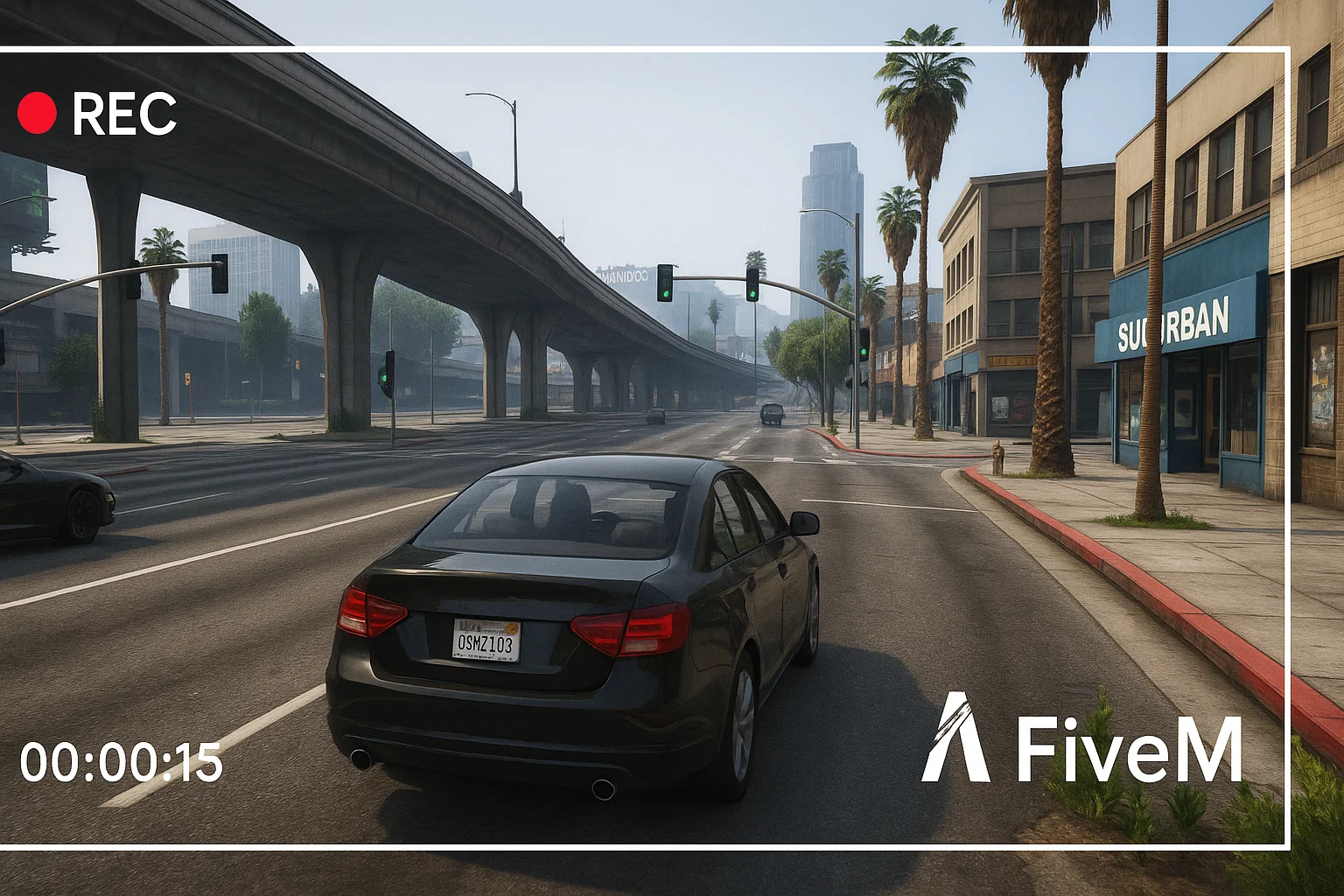
Record FiveM (OBS/Shadowplay): Stutter-Free Settings
Introduction to Recording FiveM gameplay without stuttering requires
Recording FiveM gameplay without stuttering requires precise encoder configuration and system optimization. This tutorial provides tested settings for both NVIDIA ShadowPlay and OBS Studio to capture smooth footage while maintaining optimal in-game performance.
Prerequisites
System Requirements:
- NVIDIA GTX 1660 or RTX 2060+ (NVENC encoder)
- 16GB+ RAM (32GB recommended for 4K recording)
- SSD with 100MB/s+ write speed
- Windows 10/11 with latest GPU drivers
FiveM Configuration: Add DisableNVSP=0 to your CitizenFX.ini file to enable NVIDIA overlay support:
[Game]
IVPath=C:\Program Files (x86)\Steam\steamapps\common\Grand Theft Auto V
DisableNVSP=0
Important: Test this setting as some FiveM servers may experience crashes with overlays enabled.
NVIDIA ShadowPlay Setup (Lowest Overhead)
ShadowPlay offers the most direct encoder access with minimal performance impact.
Optimal ShadowPlay Settings
- Open GeForce Experience → Settings → General
- Enable In-Game Overlay → Privacy Control → Enable Desktop Capture
- Configure Recording Settings:
Video Quality: High Quality
Resolution: Native (1080p/1440p)
Frame Rate: 60 FPS
Bitrate: 50 Mbps (1080p) / 80 Mbps (1440p)
Advanced ShadowPlay Configuration
Access advanced settings via registry modification (backup registry first):
Windows Registry Editor Version 5.00

[HKEY_LOCAL_MACHINE\SYSTEM\CurrentControlSet\Services\NvContainer\LocalSystem\NvContainerLocalSystem]
"NvCplDaemon"="C:\\Program Files\\NVIDIA Corporation\\Control Panel\
vcplui.exe"

[HKEY_CURRENT_USER\SOFTWARE\NVIDIA Corporation\Global\ShadowPlay\NVSPCAPS]
"DefaultBitrate"=dword:00007530
"DefaultBitrateHQ"=dword:0000c350
Registry Values:
DefaultBitrate: Standard quality bitrate (30000 = 30 Mbps)DefaultBitrateHQ: High quality bitrate (50000 = 50 Mbps)
OBS Studio Configuration (Maximum Control)
OBS provides comprehensive customization but requires
OBS provides comprehensive customization but requires careful tuning to prevent encoding lag.
System Optimization
- Run OBS as Administrator (critical for process priority)
- Set OBS Priority:
- Settings → Advanced → Process Priority: High
- Video → Color Format: NV12
- Video → Color Space: Rec. 709
- Video → Color Range: Partial
Video Settings
Base Canvas: Native resolution (1920×1080, 2560×1440)
Output Resolution: Same as base (no downscaling for recording)
Downscale Filter: Lanczos (36 samples)
Common FPS Values: 60 FPSNVENC Encoder Configuration
Navigate to Settings → Output → Recording:
Recording Path: SSD drive with ≥200GB free space
Recording Quality: Indistinguishable Quality
Recording Format: MP4 (MKV for safety)
Encoder: NVIDIA NVENC H.264 (new)Critical NVENC Parameters
Rate Control: CQP (Constant Quality)
CQ Level: 18-22 (lower = higher quality/larger files)
Keyframe Interval: 2 seconds
Preset: P5 Quality (RTX 3060+) or P4 (older cards)
Tuning: High Quality
Multipass: Two Pass (Quarter Resolution)
Profile: High
Look-ahead: Off (reduces encoder load)
Psycho Visual Tuning: On
GPU: 0 (dedicated GPU)
Max B-frames: 2Alternative CBR Settings
For consistent file sizes or streaming preparation:
Rate Control: CBR
Bitrate: 25-30 Mbps (1080p60) / 45-60 Mbps (1440p60)
Buffer Size: 4-6 seconds of bitrate
Preset: P5 Quality
Tuning: High QualityAudio Configuration
OBS Multi-Track Setup
Audio Track 1: Master mix (game + voice + music)
Audio Track 1: Master mix (game + voice + music)
Audio Track 2: Game audio only
Audio Track 3: Voice/microphone only
Audio Track 4: Music/Discord onlyDesktop Audio: 48kHz, 320 kbps
Microphone: 48kHz, 160 kbps
Audio Monitoring: Monitor Off (prevent feedback loops)Advanced Audio Settings
Settings → Audio:
Sample Rate: 48 kHz
Channels: Stereo
Desktop Audio: Default
Microphone: Your primary mic
Global Audio Devices: Advanced
Game-Specific FiveM Optimization
FiveM Graphics Settings
Optimize these settings to maintain consistent frame rates:
VSync: Off (prevents frame rate locks)
Population Density: 50-70%
Population Variety: 50-70%
Distance Scaling: 70-85%
Texture Quality: High
Shader Quality: High
Shadow Quality: Normal (major FPS impact)
Reflection Quality: Normal
MSAA: Off or 2x maximum
Frame Rate Management
Cap FPS Below Refresh Rate:
- 144Hz monitor → Cap at 138 FPS
- 120Hz monitor → Cap at 115 FPS
- 75Hz monitor → Cap at 72 FPS
Use NVIDIA Control Panel or in-game limiters:
NVIDIA Control Panel → Manage 3D Settings → Global Settings:
Max Frame Rate: [Your target - 5-6 FPS]
Power Management: Prefer Maximum Performance
Texture Filtering - Quality: High Performance
System-Level Optimizations
Windows Optimization
- Disable Windows Game Mode:
Settings → Gaming → Game Mode: Off Settings → Gaming → Captures: Off - Power Plan Configuration:
Control Panel → Power Options → High Performance Advanced Settings → Processor Power Management: - Minimum Processor State: 100% - System Cooling Policy: Active - Maximum Processor State: 100% - Memory Management:
Task Manager → Startup → Disable unnecessary programs Services.msc → Disable Windows Search, Superfetch
NVIDIA Driver Settings
NVIDIA Control Panel → Manage 3D Settings:
NVIDIA Control Panel → Manage 3D Settings:
Global Settings:
- CUDA – GPUs: All
- Low Latency Mode: Ultra (for competitive play) or Off (for recording)
- Power Management Mode: Prefer Maximum Performance
- Shader Cache: On
- Threaded Optimization: On
- Vertical Sync: Off
Troubleshooting Common Issues
Encoding Lag/Dropped Frames
Symptoms: OBS shows red encoding lag indicator
Solutions:
- Lower preset from P6 to P5 or P4
- Reduce CQ level from 18 to 20-22
- Disable Look-ahead and Psycho Visual Tuning
- Switch from CQP to CBR with lower bitrate
- Close background applications consuming GPU resources
Audio Desync
Symptoms: Audio progressively drifts from video
Solutions:
- Ensure consistent 48kHz sample rate across all devices
- Use exclusive mode for audio devices:
Sound Settings → Device Properties → Additional Device Properties→ Advanced → Enable "Allow applications to take exclusive control" - Add constant offset in OBS Advanced Audio Properties
Microstutters in Recording
Symptoms: Smooth gameplay but choppy recording
Solutions:
- Monitor Refresh Rate Mismatch:
- Set all monitors to exact multiples (60Hz/120Hz, not 144Hz with 60Hz)
- Use Custom Resolution Utility to adjust G-Sync range (48-144Hz minimum)
- GPU Clock Instability:
MSI Afterburner: - Lock GPU clock at +50-100 MHz - Lock memory clock at +200-400 MHz - Disable GPU Boost fluctuations - Storage Bottleneck:
- Use dedicated SSD for recordings
- Ensure 4K alignment:
fsutil fsinfo ntfsinfo C: - Monitor write speeds during recording
FiveM-Specific Issues
NVENC Not Working in FiveM:
NVENC Not Working in FiveM:
- Add
DisableNVSP=0to CitizenFX.ini - Enable Desktop Capture in GeForce Experience
- Run FiveM as Administrator
- Disable conflicting overlays (Steam, Discord)
Custom Graphics Mods Causing Issues:
- FiveM Graphics Mods may conflict with recording
- Disable ENB/ReShade temporarily for recording
- Use lighter presets from Free FiveM Mods
Performance Monitoring
Real-Time Monitoring Tools
OBS Stats Dock: Enable to monitor encoding performance
- Skipped Frames: Should remain 0%
- Encoding Lag: Should stay below 1%
- CPU Usage: Monitor for sustained >80% usage
Hardware Monitoring:
- Add
MSI Afterburner Overlay:
- GPU Usage
- GPU Memory Usage
- GPU Temperature
- VRAM Usage
- Frame Time Graph
Target Performance Metrics:
- GPU Encoder Usage: <50%
- VRAM Usage: <80% of total
- Frame Time Consistency: <3ms variance
External Resources
For advanced NVENC configuration, refer to NVIDIA’s official broadcasting guide and OBS Advanced NVENC Options documentation.
Internal Resources
- Complete FiveM Server Templates for testing recording setups
- FiveM MLOs to create cinematic recording environments
Frequently Asked Questions
Q: OBS or ShadowPlay?
A: ShadowPlay has the lowest overhead; OBS (NVENC) offers more control with small overhead if tuned.
Q: Best NVENC settings?
A: Preset P5/P6 Quality, Look-ahead Off, Psycho Visual Tuning On, B-frames 2, CQP 18–22 or CBR 20–30 Mbps @1080p60.
Q: How to avoid stutter while recording
Q: How to avoid stutter while recording?
A: Cap FPS slightly below refresh, run OBS on High priority, use exclusive fullscreen.
Q: Is Replay Buffer useful?
A: Yes—captures highlights without constant recording; ensure SSD write speed.
Q: How to split audio?
A: Use multiple OBS tracks (game/voice/music) for easier editing.
Q: HDR or 4K recording?
A: Use higher bitrates (≥50–80 Mbps) and ensure GPU headroom; otherwise record 1080p60.
Q: Any ShadowPlay tips?
A: High quality, 60 FPS, adequate bitrate, disable extra overlays.
Q: Any legal/server rules?
A: Follow server rules; avoid recording private channels or prohibited UI.
Conclusion: Proper NVENC configuration with system optimization eliminates recording stutters while maintaining FiveM performance at competitive frame rates.
Related: How to create a FiveM Server Trailer
Stay in the Loop
Get the latest FiveM tutorials, mod releases, and exclusive updates delivered to your inbox.
No spam. Unsubscribe anytime.