How To Create a Server Logo: Complete Design Guide (2026)
Introduction to Creating a professional server logo establishes brand
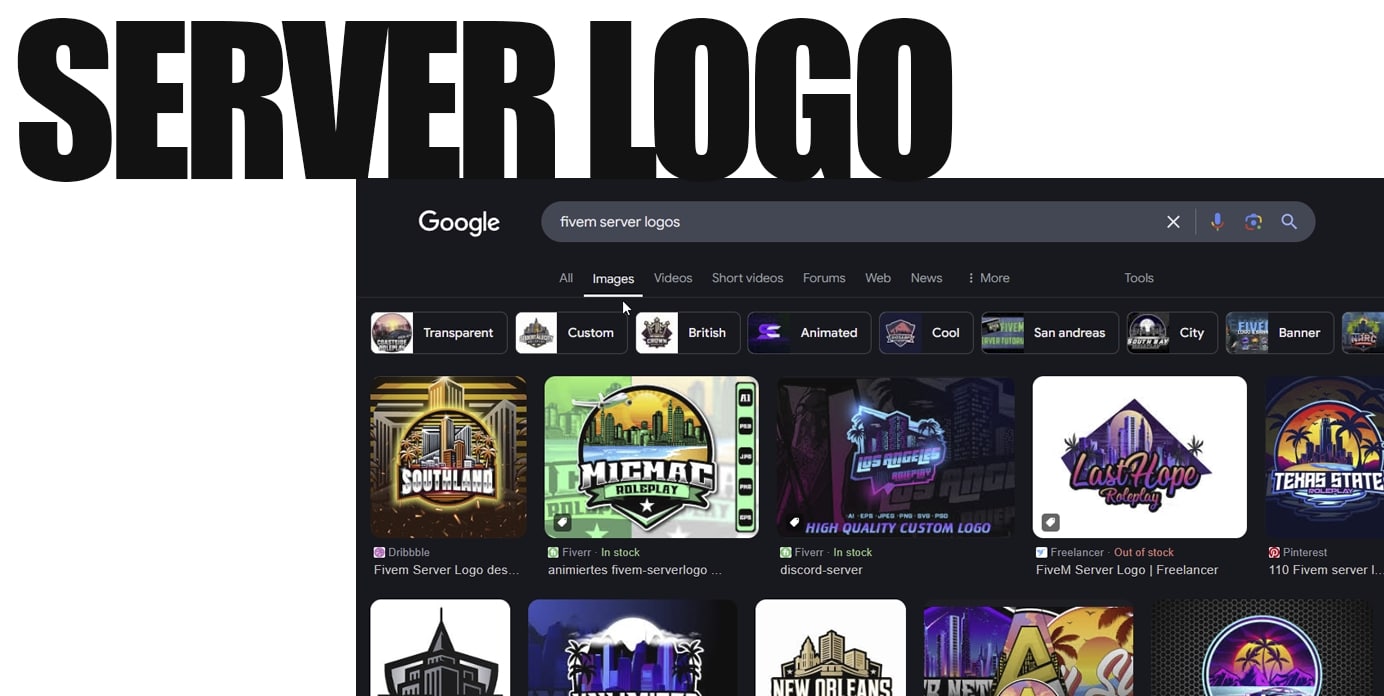
Creating a professional server logo establishes brand identity and attracts players to your gaming community. This guide covers design principles, technical specifications, and implementation across platforms like FiveM, Minecraft, and Discord servers.
Logo Design Fundamentals
Essential Design Principles
- Scalability: Your logo must remain legible at 16×16 pixels (Discord favicons) and impressive at 1024×1024 pixels (website headers).
- Simplicity: Complex designs fail at small sizes. Limit elements to 3-4 maximum—icon, text, accent shape, background.
- Contrast: Ensure 4.5:1 contrast ratio minimum between text and background for WCAG AA compliance. Use tools like WebAIM Contrast Checker for verification.
- Brand Consistency: Establish primary color (brand recognition), secondary color (accents), and neutral color (backgrounds/text).
Typography Guidelines
Readability Standards:
- Minimum 12pt font size for body text
- Sans-serif fonts for digital applications
- Maximum 2 font families per design
Recommended Font Categories:
- Gaming/Tech: Orbitron, Exo, Rajdhani
- Professional: Montserrat, Open Sans, Lato
- Roleplay/Immersive: Cinzel, Playfair Display, Crimson Text
Technical Specifications
File Format Requirements
Vector Source: Always create in SVG or AI format for infinite scalability without quality loss.
Raster Exports Required:
- PNG: Transparent backgrounds, web usage
- JPG: Social media, email signatures
- ICO: Windows favicons (16×16, 32×32, 48×48)
- WEBP: Modern web optimization (30-50% smaller files)
Standard Dimensions
Primary Logo Sizes:
512×512px: Discord server icons, Steam artwork
256×256px: Game launcher icons, forum avatars
128×128px: Website favicons, mobile app icons
64×64px: In-game overlays, chat system icons
32×32px: Taskbar icons, browser tabs
16×16px: System tray, minimal UI elements
Banner/Header Sizes:
Banner/Header Sizes:
1920×1080px: Website headers, YouTube thumbnails
1200×630px: Facebook/Twitter social sharing
820×312px: Discord server banners
460×215px: Steam community artwork
Design Process
Step 1: Concept Development
Brand Identity Questions:
- Server genre (Roleplay, PvP, Creative, Racing)
- Target audience age and interests
- Server atmosphere (serious, casual, competitive)
- Unique selling points or themes
Mood Board Creation:
- Collect 10-15 reference images representing desired aesthetic
- Analyze successful server logos in your genre
- Document color preferences and style directions
Step 2: Sketching and Wireframing
Initial Concepts:
- Create 5-10 rough sketches on paper or tablet
- Focus on shapes and composition, not details
- Test readability at thumbnail size (draw 1-inch versions)
Digital Wireframes:
- Convert best 2-3 sketches to digital wireframes
- Use placeholder shapes and basic typography
- Validate scalability by viewing at multiple sizes
Step 3: Digital Creation
Adobe Illustrator Workflow
Document Setup
File → New Document:
Profile: Web
Units: Pixels
Width: 512px
Height: 512px
Color Mode: RGB
Raster Effects: 300 PPI
Advanced: Align New Objects to Pixel Grid (checked)
Layer Organization
Layer Structure:
├── Background
├── Main Icon/Symbol
├── Text Elements
│  ├── Primary Text
│  └── Tagline/Subtitle
├── Effects/Accents
└── Export Guides
Typography Implementation
Text Tool Best Practices:
Type → Create Outlines (before final export)
Character Panel:
- Tracking: -25 to +25 (avoid extremes)
- Leading: 120-140% of font size
- Optical kerning for display text
Color Implementation
Color Panel Setup:
Process Colors (CMYK for print):
C: 85, M: 50, Y: 0, K: 0 (Blue example)

Global Colors (RGB for digital):
R: 38, G: 127, B: 204 (Blue example)

Hex Values:
Primary: #267FCC
Secondary: #FF6B35
Neutral: #2F2F2F
Free/Budget Alternatives
Canva Server Logo Creation
- Template Selection:
- Search “Gaming Logo” or “Server Logo”
- Filter by free templates
- Choose simple, scalable designs
- Customization Process:
Elements → Graphics → Search "Gaming Icons" Text → Add heading → Font: Orbitron/Montserrat Background → Solid color or subtle gradient Effects → Drop shadow (2px offset, 20% opacity) - Export Settings:
Download → PNG Background: Transparent Quality: Standard (sufficient for most uses)
GIMP (Free Alternative)
Setup: File → New: Image Size: 512×512
Setup:
File → New:
Image Size: 512×512 pixels
Color Space: RGB color
Precision: 8-bit integer
Background: Transparent
Text Implementation:
Tools → Text → Font: 48px
Anti-aliasing: Enabled
Hinting: Slight
Force auto-hinter: Checked
Export Optimization:
File → Export As → PNG
Compression level: 6
Save background color: Unchecked
Save creation time: Unchecked
# Server Information
sv_projectName "Your Server Name"
sv_projectDesc "Your server description here"

# Logo URLs (must be direct links to images)
load_server_icon "https://yoursite.com/logo-64x64.png"
sets tags "roleplay,economy,custom"

# Additional branding
sets locale "en-US"
sets sv_licenseKey "your_license_key_here"
Loading Screen Integration:
<!-- loading.html -->
<!DOCTYPE html>
<html>
<head>
  <style>
  .logo {
  width: 200px;
  height: 200px;
  margin: 20px auto;
  display: block;
  }
  </style>
</head>
<body>
  <img src="logo-512x512.png" class="logo" alt="Server Logo">
  <div class="server-info">
  <h1>Your Server Name</h1>
  <p>Loading your experience...</p>
  </div>
</body>
</html>
Discord Server Setup
Server Icon Requirements:
- Format: PNG, JPG, GIF (max 10MB)
- Recommended: 512×512px minimum
- Animated: GIF under 10MB, PNG sequence
Implementation Steps:
Server Settings → Overview → Upload Icon
Drag logo file or click to browse
Crop to square aspect ratio if needed
Save Changes
Server Banner Setup:
Server Settings → Overview → Upload Banner
Dimensions: 960×540px minimum
File size: Under 10MB
Format: PNG, JPG recommended
Steam Community Integration
Artwork Upload Process:
Community → Your Profile → Edit Profile
Screenshots & Artwork → Upload Artwork
Category: Fan-art or Artwork
File: PNG/JPG, max 20MB
Dimensions: 1920×1080px for featured artwork
Game Server Banner:
Game Server Banner:
Steam Server Manager → Server Details
Icon: 64×64px ICO format
Featured Image: 460×215px PNG/JPG
Quality Assurance Testing
Visual Testing Checklist
Scalability Test:
- [ ] Readable at 16×16px
- [ ] Professional at 512×512px
- [ ] No pixelation or blur at any size
- [ ] Text remains legible at all scales
Color Testing:
- [ ] Contrast ratio ≥ 4.5:1 for text
- [ ] Colors remain distinct in grayscale
- [ ] No color bleeding or artifacts
- [ ] Consistent across different monitors
Platform Testing:
- [ ] Discord server icon display
- [ ] Website favicon functionality
- [ ] In-game overlay visibility
- [ ] Social media thumbnail appearance
File Optimization
PNG Optimization:
# Using OptiPNG (command line)
optipng -o7 logo-512x512.png

# Using TinyPNG (web service)
# Upload to tinypng.com for 60-80% size reduction
SVG Optimization:
# Using SVGO
npm install -g svgo
svgo logo.svg -o logo-optimized.svg
Batch Conversion Script (ImageMagick):
#!/bin/bash
# Convert single SVG to multiple PNG sizes
magick logo.svg -resize 512x512 logo-512.png
magick logo.svg -resize 256x256 logo-256.png
magick logo.svg -resize 128x128 logo-128.png
magick logo.svg -resize 64x64 logo-64.png
magick logo.svg -resize 32x32 logo-32.png
magick logo.svg -resize 16x16 logo-16.png
Advanced Techniques
Animated Logo Creation
After Effects Workflow:
Composition Settings:
Duration: 3-5 seconds maximum
Frame Rate: 30fps
Dimensions: 512×512px
Background: Transparent
Export Settings:
Render Queue → Output Module:
Format: QuickTime (MOV)
Codec: Animation or ProRes 4444
Alpha Channel: Straight - Unmatted
GIF Optimization:
Media Encoder → Format: Animated GIF
Width/Height: 512px maximum
Frame Rate: 15fps (reduces file size)
Colors: 256 (maximum for GIF)
Looping: 99 times
Responsive Logo System
CSS Implementation:
CSS Implementation:
.server-logo {
  width: 100%;
  max-width: 200px;
  height: auto;
}

/* Breakpoint optimization */
@media (max-width: 768px) {
  .server-logo {
  max-width: 120px;
  }
}

@media (max-width: 480px) {
  .server-logo {
  max-width: 80px;
  }
}
HTML Picture Element:
<picture>
  <source media="(max-width: 480px)" srcset="logo-64x64.png">
  <source media="(max-width: 768px)" srcset="logo-128x128.png">
  <source media="(min-width: 769px)" srcset="logo-256x256.png">
  <img src="logo-256x256.png" alt="Server Logo" class="server-logo">
</picture>
Legal and Copyright Considerations
Trademark Research
USPTO Database Search:
- Visit tess2.uspto.gov
- Search existing trademarks in gaming/entertainment categories
- Document search results for legal protection
Copyright Compliance:
- Avoid copyrighted game assets (GTA V logos, character likenesses)
- Use royalty-free fonts and graphics only
- Original artwork recommended for commercial servers
Fair Use Guidelines:
- Parody and transformative use may qualify
- Commercial use restrictions apply to most copyrighted material
- Consult legal counsel for revenue-generating servers
Font Licensing
Commercial License Requirements:
Google Fonts: Open Source License (commercial use allowed)
Adobe Fonts: Included with Creative Cloud subscription
Font Squirrel: Filtered commercial-use fonts available
MyFonts: Purchase commercial licenses individually
Asset Management and Version Control
File Organization Structure
server-branding/
├── source-files/
│  ├── logo-master.ai (Adobe Illustrator)
│  ├── logo-master.svg (Vector source)
│  └── brand-guidelines.pdf
├── exports/
│  ├── png/
│  │  ├── logo-16x16.png
│  │  ├── logo-32x32.png
│  │  ├── logo-64x64.png
│  │  ├── logo-128x128.png
│  │  ├── logo-256x256.png
│  │  └── logo-512x512.png
│  ├── ico/
│  │  └── favicon.ico
│  └── webp/
│  └── [corresponding webp files]
├── animated/
│  ├── logo-animation.gif
│  └── logo-animation.mp4
└── documentation/
  ├── color-codes.txt
  ├── font-list.txt
  └── usage-guidelines.md
Version Control Implementation
Git Repository Setup:
Git Repository Setup:
git init server-branding
git add .
git commit -m "Initial logo design v1.0"
git tag v1.0

# For updates
git add logo-updated.svg
git commit -m "Updated logo - improved readability at small sizes"
git tag v1.1
Performance and Loading Optimization
Web Performance Impact
Optimal File Sizes:
16×16px favicon: <1KB
64×64px icon: <5KB
256×256px logo: <25KB
512×512px header: <50KB
Loading Strategy:
<!-- Critical above-fold logo -->
<img src="logo-128x128.png" alt="Server Logo"
  width="128" height="128" loading="eager">

<!-- Non-critical logos -->
<img src="banner-1920x1080.png" alt="Server Banner"
  loading="lazy">
CSS Sprite Implementation:
.logo-sprite {
  background: url('logos-sprite.png') no-repeat;
  width: 64px;
  height: 64px;
}

.logo-small { background-position: 0 0; }
.logo-medium { background-position: -64px 0; }
.logo-large { background-position: -128px 0; }
Troubleshooting Common Issues
Pixelation Problems
Cause: Raster source scaled beyond original dimensions Solution: Recreate from vector source or use AI upscaling tools like Waifu2x
Color Inconsistency
Cause: Color space conversion between RGB/CMYK Solution: Define colors in target color space from start, use color profiles
Loading Screen Integration Failures
FiveM Common Issues:
Error: "Resource not found"
Fix: Verify file paths in fxmanifest.lua

Error: "Image format not supported"
Fix: Use PNG/JPG only, avoid WEBP in older FiveM versions

Error: "File size too large"
Fix: Compress images under 1MB for loading screens
Discord Display Problems
Blurry Server Icons:
- Upload 512×512px minimum resolution
- Avoid JPG compression artifacts
- Use PNG for sharp edges and text
Banner Not Displaying:
- Verify server boost level (Level 2+ required)
- Check 960×540px minimum dimensions
- Ensure under 10MB file size
Professional Services and Resources
Design Marketplaces
Fiverr/Upwork Considerations:
Fiverr/Upwork Considerations:
- Request vector source files (AI/SVG)
- Specify all required dimensions upfront
- Require commercial usage rights
- Budget: $25-$150 for professional quality
Template Resources:
- Canva Pro: $12.95/month, extensive template library
- Envato Elements: $16.50/month, unlimited downloads
- Creative Market: Individual purchases, higher quality
Quality Validation Tools
Automated Testing:
Accessibility: WAVE Web Accessibility Evaluator
Performance: GTmetrix, PageSpeed Insights
Color Contrast: WebAIM Contrast Checker
Image Optimization: TinyPNG, ImageOptim
Professional server logo creation requires balancing aesthetic appeal with technical requirements across multiple platforms and use cases—master these fundamentals to establish compelling brand identity that scales from favicon to billboard.
Stay in the Loop
Get the latest FiveM tutorials, mod releases, and exclusive updates delivered to your inbox.
No spam. Unsubscribe anytime.