FiveM: How To Change FoV
Changing the Field of View (FOV) in FiveM is a quick and easy way to make first-person gameplay more comfortable. By adjusting the FOV, you can expand or narrow your view, giving you the ability to tailor your in-game perspective to your preferences.
Here’s a straightforward guide on how to adjust the FOV in FiveM:
Table of Contents
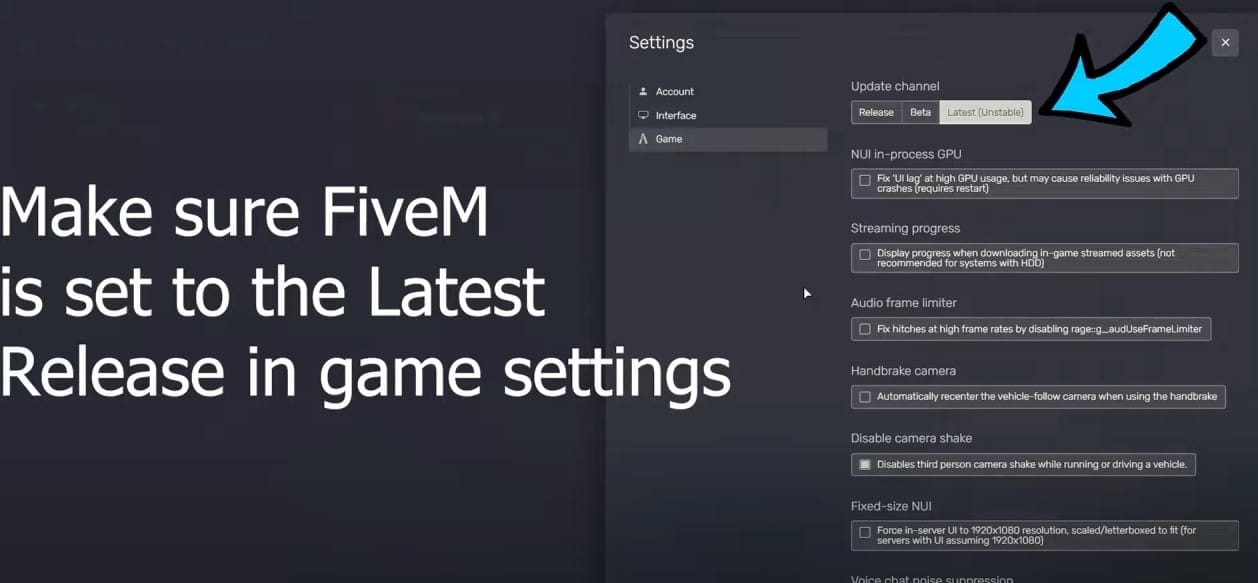
Step 1: Make Sure You’re on the Latest Unstable FiveM Branch
Before you get started, ensure that you’re running the latest unstable version of FiveM. The FOV adjustment command works best on this branch, as it tends to receive the newest features and commands before the main branch.
Tip: To switch to the unstable branch, go to your FiveM settings and select the “Canary” or unstable update option if available.
Step 2: Open the Console
- Press
F8on your keyboard. This will open the FiveM console. - In the console, you can type in various commands, including the FOV adjustment.
Step 3: Enter the FOV Command
To adjust your FOV, enter the following command into the console:
- Replace
<desired_number>with the FOV value that feels best for you. - Most players find a comfortable range between 70 and 90, but feel free to experiment to see what suits your gameplay style.
Example: If you want a wider view, try setting it to 85 with the command:
Step 4: Test. Adjust.
Exit the console, hop into first-person mode, and see how the FOV feels. You can return to the console and tweak the value as needed until it’s just right.
Why Adjust FOV in FiveM?
Customizing your FOV can make a huge difference in your gameplay experience, especially if you prefer a more immersive first-person view. Higher FOVs can reduce tunnel vision, giving you a wider look at your surroundings, which can be helpful in both roleplay and combat situations.
By following these steps, you can set up a comfortable, personalized view in FiveM’s first-person mode for a better overall experience. Enjoy the game with your custom FOV, and have fun. ;)
Stay in the Loop
Get the latest FiveM tutorials, mod releases, and exclusive updates delivered to your inbox.
No spam. Unsubscribe anytime.