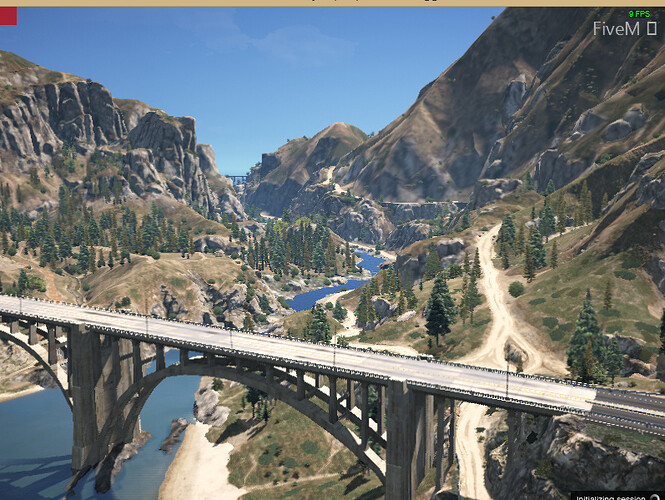
Disable Bridge Element in FiveM Loading Screen
This tutorial explains how to remove the bridge from FiveM server loading screen
by creating or modifying a loading screen resource.
Prerequisites
- FiveM server access with resource modification permissions
- Basic understanding of HTML/CSS
- a Text editor like Notepad++ (or the default notepad of Windows)
Method 1: Create New Loading Screen Resource
Step 1: Create Resource Structure
loadingscreen/
├── fxmanifest.lua
├── index.html
└── style.css
Step 2: Configure fxmanifest.lua
fx_version 'cerulean'
game 'gta5'

author 'YourName'
description 'Custom Loading Screen - Bridge Disabled'
version '1.0.0'

loadscreen 'index.html'
loadscreen_cursor 'yes'

files {
    'index.html',
    'style.css'
}
Step 3: Create index.html
<!DOCTYPE html>
<html>
<head>
    <link rel="stylesheet" href="style.css">
</head>
<body>
    <div id="loading-container">
        <h1>Server Name</h1>
        <div class="progress-bar">
            <div class="progress-fill"></div>
        </div>
    </div>

    <script>
        // Disable bridge overlay
        window.addEventListener('DOMContentLoaded', () => {
            const bridge = document.querySelector('.bridge-overlay');
            if (bridge) bridge.remove();
        });

        // Handle loading progress
        window.addEventListener('message', (e) => {
            if (e.data.eventName === 'loadProgress') {
                const fill = document.querySelector('.progress-fill');
                fill.style.width = e.data.loadFraction * 100 + '%';
            }
        });
    </script>
</body>
</html>
Step 4: Add to server.cfg
ensure loadingscreen
Method 2: Modify Existing Loading Screen
Step 1: Locate Current Loading Screen Resource Check server.cfg for lines starting with ensure or start containing “loading” or “loadscreen”
Step 2: Add Bridge Removal Code Insert into existing HTML file before closing </body> tag:
<script>
    // Remove bridge on load
    document.addEventListener('DOMContentLoaded', function() {
        const bridgeElements = document.querySelectorAll(
            '.bridge-overlay, #bridge, [class*="bridge"]'
        );
        bridgeElements.forEach(el => el.style.display = 'none');
    });

    // Backup removal for dynamically loaded elements
    const observer = new MutationObserver((mutations) => {
        mutations.forEach((mutation) => {
            mutation.addedNodes.forEach((node) => {
                if (node.nodeType === 1 &&
                    (node.classList?.contains('bridge-overlay') ||
                     node.id === 'bridge')) {
                    node.remove();
                }
            });
        });
    });

    observer.observe(document.body, {
        childList: true,
        subtree: true
    });
</script>
CSS Override Method
Add to your loading screen’s CSS file:
.bridge-overlay,
#bridge,
[class*="bridge-"] {
    display: none !important;
    visibility: hidden !important;
    opacity: 0 !important;
}
Troubleshooting
Bridge Still Visible:
- Clear server cache: Delete
cache/folder - Verify resource load order in
server.cfg - Check browser console (F12) for JavaScript errors
Loading Screen Not Appearing:
- Confirm
loadscreendirective in fxmanifest.lua - Verify file paths match exactly (case-sensitive)
- Check server console for resource errors
Technical Notes
- FiveM loading screens run in CEF (Chromium Embedded Framework)
- Bridge element typically injected by default loading mechanisms
- MutationObserver ensures removal of dynamically added elements
Uncertainties
- Exact bridge element class names may vary between FiveM versions
- Some custom frameworks might use different overlay implementations
Summary: Remove FiveM’s bridge overlay by creating a custom loading screen resource with JavaScript that targets and removes bridge elements on page load.
Stay in the Loop
Get the latest FiveM tutorials, mod releases, and exclusive updates delivered to your inbox.
No spam. Unsubscribe anytime.